
Idle
The battery stays on but does not charge or discharge automatically. It still uses a small amount of standby power. Physically switch the battery off when it needs to be completely off.
ZinVolt guide
See what your battery is doing, choose the right smart mode and read your statistics. This guide takes you straight to the section you need.
Quick answers to questions such as
Jump to your question
Choose a topic to jump straight to the explanation.
Your starting point
The dashboard shows at a glance what your battery, home and the grid are doing right now.

Here you can see the battery's charge level, stored energy and current power.
Input means the battery is storing electricity. Output means the battery is supplying electricity. A minus sign indicates that energy is flowing out of the battery at that moment.
Here you can see how much power your home is still drawing from the grid or feeding back into it.
This is your home's current total energy use. Tap this tile to view the P1 dongle's status and settings.
This shows which mode is active. Tap the tile to choose a different mode.
The green connections show which parts are exchanging energy at that moment.
Your battery
Tap the large battery card on the dashboard to open the detailed overview of your home battery.
At the top, you can see whether the battery is online and how many expansion modules are connected.
The bar shows how full the battery is. Energy in kWh shows how much energy is currently stored.
Here you can adjust settings including maximum output power, minimum charge level and smart mode.
Here you can find the battery system’s current technical status.

Automatic control
A smart mode determines when the battery charges, discharges or temporarily takes no automatic action.

The battery stays on but does not charge or discharge automatically. It still uses a small amount of standby power. Physically switch the battery off when it needs to be completely off.
The battery uses data from the P1 dongle. Surplus solar energy is stored. Consumption not covered by the solar panels is supplied by the battery as far as possible.
Create your own weekly schedule with fixed time slots for charging and discharging.
Let the battery respond to low and high energy prices. This requires a dynamic energy contract.
Tap the settings icon to the right of Fast charging (Snel laden) to set charging power. The battery charges at that power up to 100%; its control does not distinguish between solar power and the grid.
The battery discharges at the configured maximum output power. The energy is used in your home or exported to the grid. The minimum charge level remains active.
Important final step
Opening or configuring a mode does not activate it. First tap your chosen mode. Then check the energy direction on the confirmation screen and tap the green Smart modus selecteren button to select the smart mode.
If you go back without using the green button, the previously active mode remains selected.

Plan your own schedule
Custom mode lets you choose charging and discharging times for each day.


Find Custom and tap its settings icon.
Give the mode a recognisable name.
Select the days when the schedule should apply.
Add a time slot under Charge or Feed back .
Tap the time slot you created to adjust the start time, end time and power.
Save the changes. Then select the custom mode and activate it on the confirmation screen.
In this mode, Terugleveren means that the battery discharges. Your home can use the power. Any energy not needed in your home at that moment may go to the grid.
The minimum charge level in the battery settings also remains active within a custom schedule.
Dynamic energy prices
In this mode, choose what the battery should do during the day’s cheapest and most expensive price periods.
Required: a dynamic energy contract.
The app compares that day’s price periods and groups them using your configured thresholds.

Limits and actions
Open the battery card and tap Settings (Instellingen). For daily use, the power limit, charge limit and active mode are the key settings.

Set the maximum power at which the battery may discharge. This limit applies in every smart mode. The ZinVolt Base and Power support up to 2,000 W. If your Base or Power is still set to 800 W, open Maximale uitvoer (Maximum output) in the app. You can request an increase to a maximum of 2,000 W there. The ZinVolt Core supports up to 3,600 W.
SOC stands for State of Charge and shows how full the battery is. The battery stops discharging when the configured minimum charge level is reached. This protection remains active in every smart mode.
This opens the same overview of available modes.
Use this option if your Wi-Fi network’s name or password has changed, or if you want to connect the battery to a different network.
This time matters when the system has no activity at all for an extended period, for example during a power outage. The system may switch off after the configured period.
Multiple ZinVolt Base systems can work together as one system. The same applies to multiple ZinVolt Core systems. Base and Core cannot be combined. ZinVolt Power does not support multi-system operation.
View the guide for multiple systemsThis removes the link between the battery and your account in the app.
Insights over time
Open Statistics (Statistieken) at the bottom of the app. Compare consumption, export, charging and discharging over a chosen period.

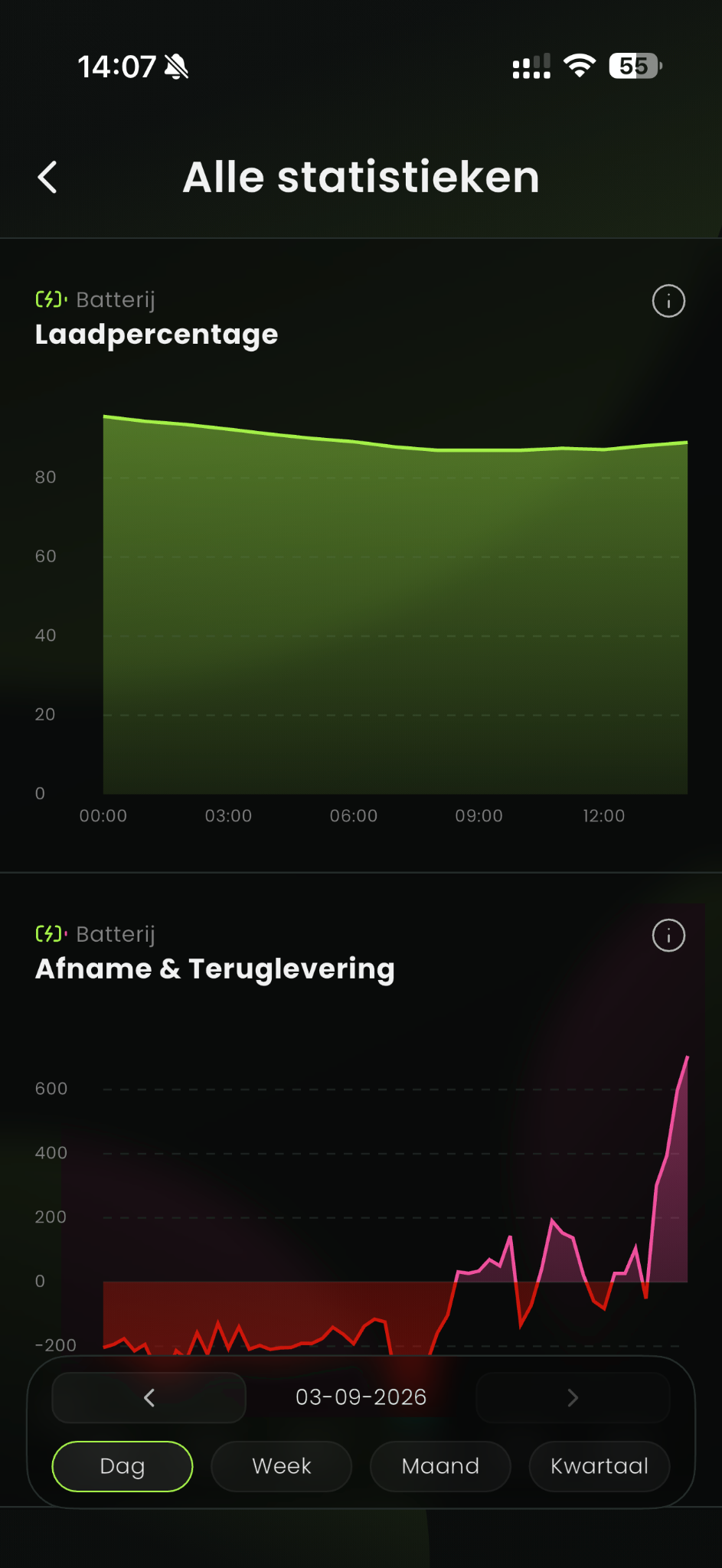
The energy your home drew from the grid during the selected period.
The energy your home exported to the grid during the selected period.
The amount of energy stored in the battery.
The amount of energy delivered by the battery.
This chart shows how full the battery was during the selected day or period.
This chart shows the battery’s power in W. Above zero, the battery is charging. Below zero, it is discharging.
This chart shows the power in W that your home is drawing from or exporting to the grid. Above zero means import. Below zero means export.
Use the period buttons at the bottom to view the same measurements over a different timescale.
Measuring at the smart meter
The P1 dongle provides the app with your home’s current import and export data. This data is needed for Self-consumption to work correctly.


The settings page shows the type and serial number. Use P1-dongle ontkoppelen (Unlink P1 dongle) to remove the dongle from the app.
Management
A Home groups the devices belonging to the same property or installation.
Tap ZinVolt with the arrow at the top of the dashboard. You can switch between Homes, create a new Home and manage existing Homes there.
Use Settings (Instellingen) at the bottom of the app to manage your account details, language and password. You can also log out here.
Deleting your account unlinks all devices. Your entire account is then deleted from ZinVolt.
Quick answers
Answers to the questions that most often arise during everyday use.
The battery remains switched on. The display, communication, battery management system and safety systems use a small amount of energy. Physically switch the battery off if you want no standby consumption at all.
After choosing a mode, you still need to confirm it using the green Smart modus selecteren button. Without this confirmation, the previous mode remains active.
Check the minimum charge level in the battery settings. Once this limit is reached, the battery stops discharging regardless of the selected mode.
W shows the current power at this moment. kWh stands for kilowatt-hour and measures energy over time. 1 kWh is the energy used by 1,000 watts over one hour.
Fast charging follows the configured charging power and does not distinguish between the available sources in its controls. The battery continues charging to 100%.
Between the two thresholds, the battery does not dynamically charge or discharge.
For the ZinVolt Base and Power, the maximum is 2,000 W. If your Base or Power is still set to 800 W, you can ask ZinVolt to increase it to a maximum of 2,000 W. For the ZinVolt Core, the maximum is 3,600 W.
Open the Dashboard and tap Home (Thuis). The P1 dongle section shows its current status. If it is offline, check its power and connection. Use the installation guide if it needs pairing again.
Need more help?
This guide explains how to use the ZinVolt app. Use the installation guides if you still need to pair a battery or P1 dongle.
Je winkelwagen is nog leeg, maar wij helpen je graag om hem te vullen met slimme producten.


