
ZinVolt Manual
Switching from the EnergyLife app to the ZinVolt app
Your home battery can only be linked to one app at a time. Is your battery still linked to the EnergyLife app? Then you must first unlink it. After that, you can add the battery in the ZinVolt app.
Find the right instructions
Where would you like to start?
Follow the guide from top to bottom, or jump to the step where you left off.
Before you start
What you need
- Your phone with the EnergyLife app
- The ZinVolt app installed
- Bluetooth enabled on your phone
- An active Wi-Fi connection
- Your Wi-Fi password
- Your home battery switched on and nearby
- The ZinVolt Power serial number
Found on the underside of the device
What you will do
- Unlink the battery in the EnergyLife app
- Add the battery in the ZinVolt app
- Check that the battery appears in the app
Download the ZinVolt app using the buttons below


Please note: historical data from the EnergyLife app is not transferred. From the switch onwards, new data is recorded in the ZinVolt app.
EnergyLife app
Open the device overview

You are now on the EnergyLife app dashboard. Tap the middle icon at the bottom (the device/overview icon). This opens the screen showing your connected devices.
Continue to step 2.
EnergyLife app
View linked devices

You can now see all devices currently connected in the EnergyLife app.
Your ZinVolt Power should be listed here. Any connected Mate modules are included with it and do not need to be unlinked separately. You will also see the P1 dongle PRO. This must be unlinked too.
In this example, we will continue with the ZinVolt Power.
Tap the ZinVolt Power. Its device details will open.
Scroll down on this screen and tap ‘Meer details’ (More details) to continue.
Continue to step 3.
EnergyLife app
Disconnect the ZinVolt Power

You can now see the ZinVolt Power's device details.
Tap ‘Ontkoppelen’ (Unlink) at the top right.
A confirmation screen appears.
Tap ‘Bevestigen’ (Confirm) to unlink the ZinVolt Power.
After unlinking, you return to the device overview.
Repeat the same steps for the P1 dongle PRO:
return to the device overview (step 2), tap the P1 dongle PRO and unlink it in the same way.
Continue to step 4
ZinVolt app
Add the ZinVolt Home Battery to the ZinVolt app

You have now unlinked the ZinVolt home battery and the P1 dongle PRO in the EnergyLife app.
From this point, continue in the ZinVolt app. Download the ZinVolt app and create an account.
After creating your account, you will automatically be asked to add a battery. You can also start adding a battery from the dashboard later.
Tap ‘Batterij toevoegen’ (Add battery) when you are ready to connect your ZinVolt home battery to the ZinVolt app.
Continue to step 5
ZinVolt App
Find your home battery
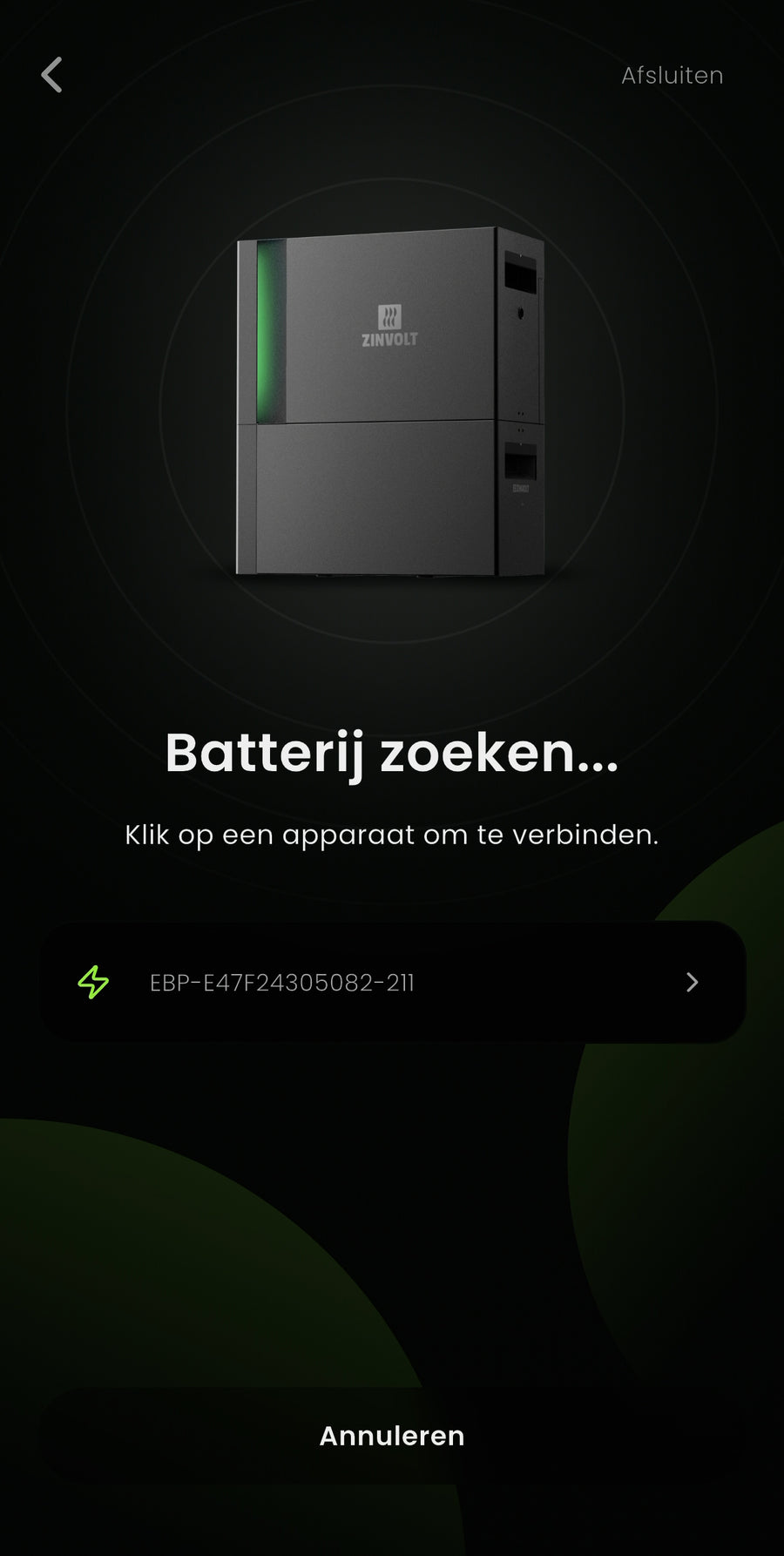
The app guides you through connecting the battery step by step.
Make sure Bluetooth is enabled beforehand on your phone. Without Bluetooth, the home battery cannot be found.
You will see questions about the battery's connection and use. Read them carefully. This is important for using the battery safely and correctly.
Complete every step shown in the app and tap ‘Verder’ (Continue) each time to proceed.
The app then starts searching for the battery.
Your battery appears on screen. Tap it to select it and move to the next step.
Continue to step 6
ZinVolt app
Enter serial number
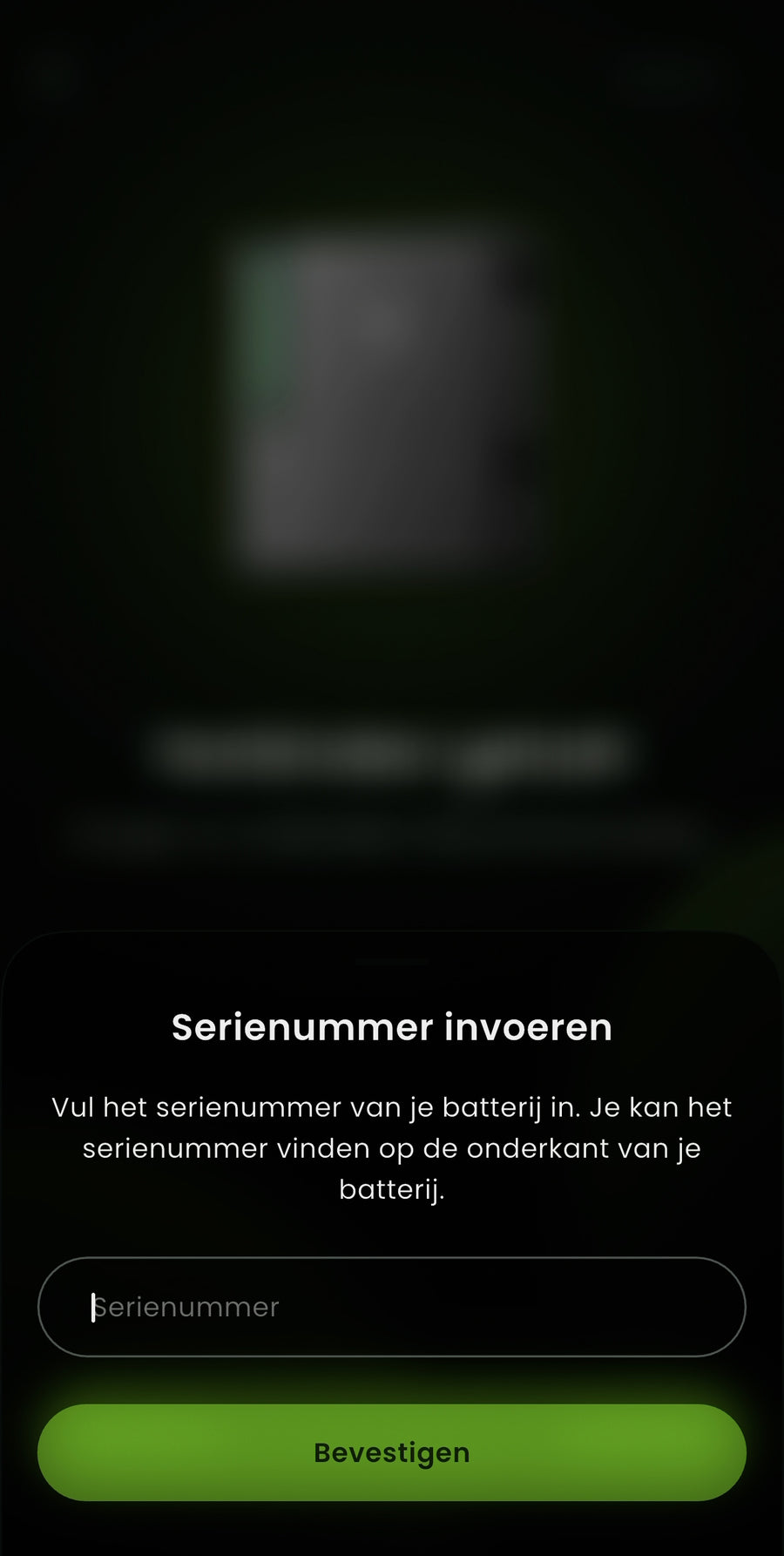
After selecting the battery, the app asks you to enter its serial number.
Enter the serial number of the ZinVolt Power you want to connect to.
This number must exactly match the home battery's serial number. If it is incorrect, the battery cannot be connected.
You can find the serial number on the underside of the ZinVolt Power.
Use only the ZinVolt Power serial number, not the number of any Mate modules or the P1 dongle PRO.
The ZinVolt Power serial number starts with ALG00.
After entering it, tap ‘Bevestigen’ (Confirm) to continue.
Continue to step 7
ZinVolt app
Connect to Wi-Fi and complete the setup
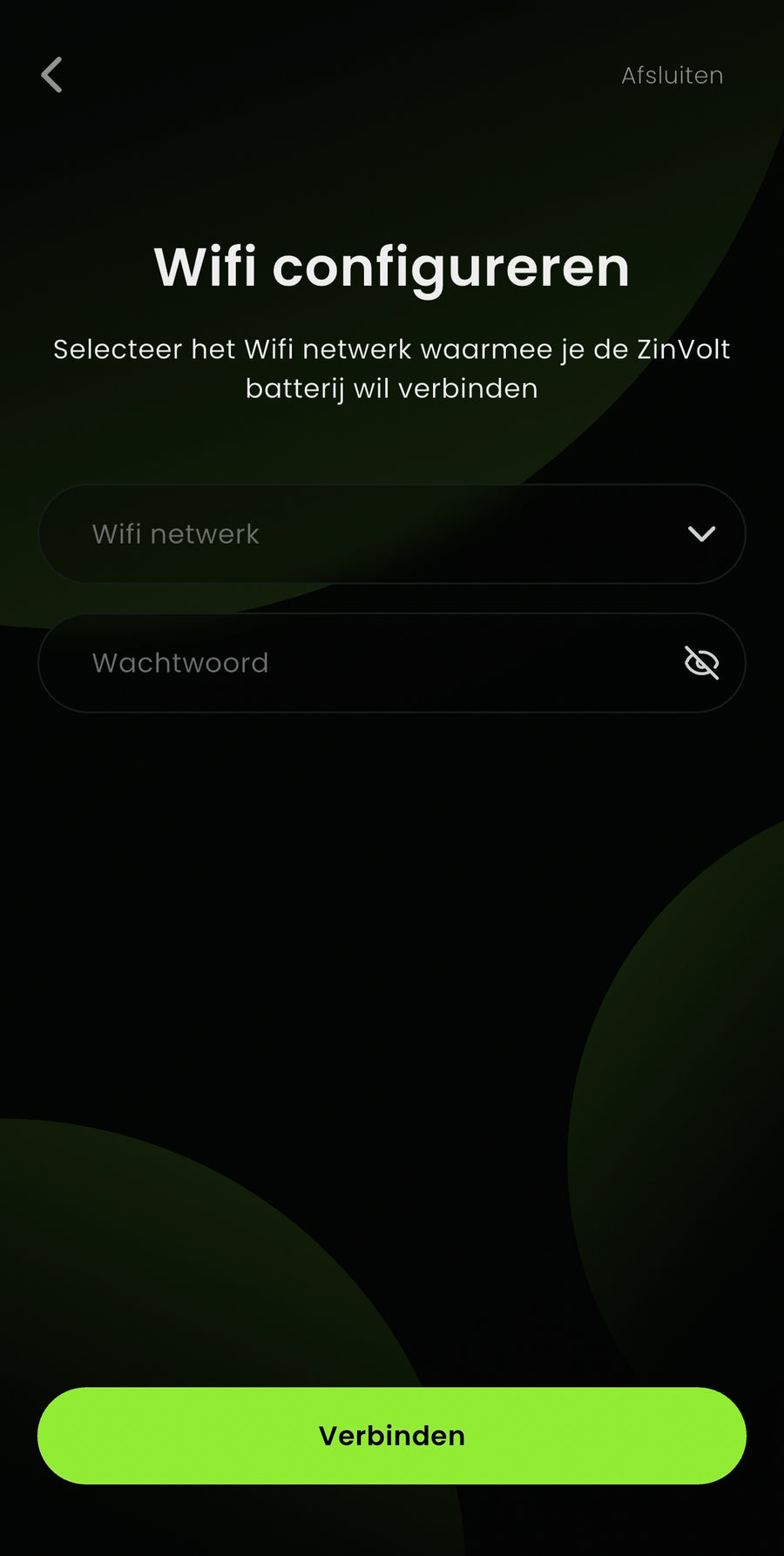
In this step, connect the ZinVolt Power to your Wi-Fi network. Select the correct network and enter its password.
Make sure you use the correct, current Wi-Fi password. Unsure whether it has recently changed? Check your phone's or router's Wi-Fi settings before continuing.
After you enter the network and password, the battery is configured automatically. This may take a little while. Once configuration succeeds, a confirmation appears and your ZinVolt home battery is ready to use in the app.
Tap ‘Verder’ (Continue) to finish configuration.
Continue to step 8
ZinVolt app
Choose user profile
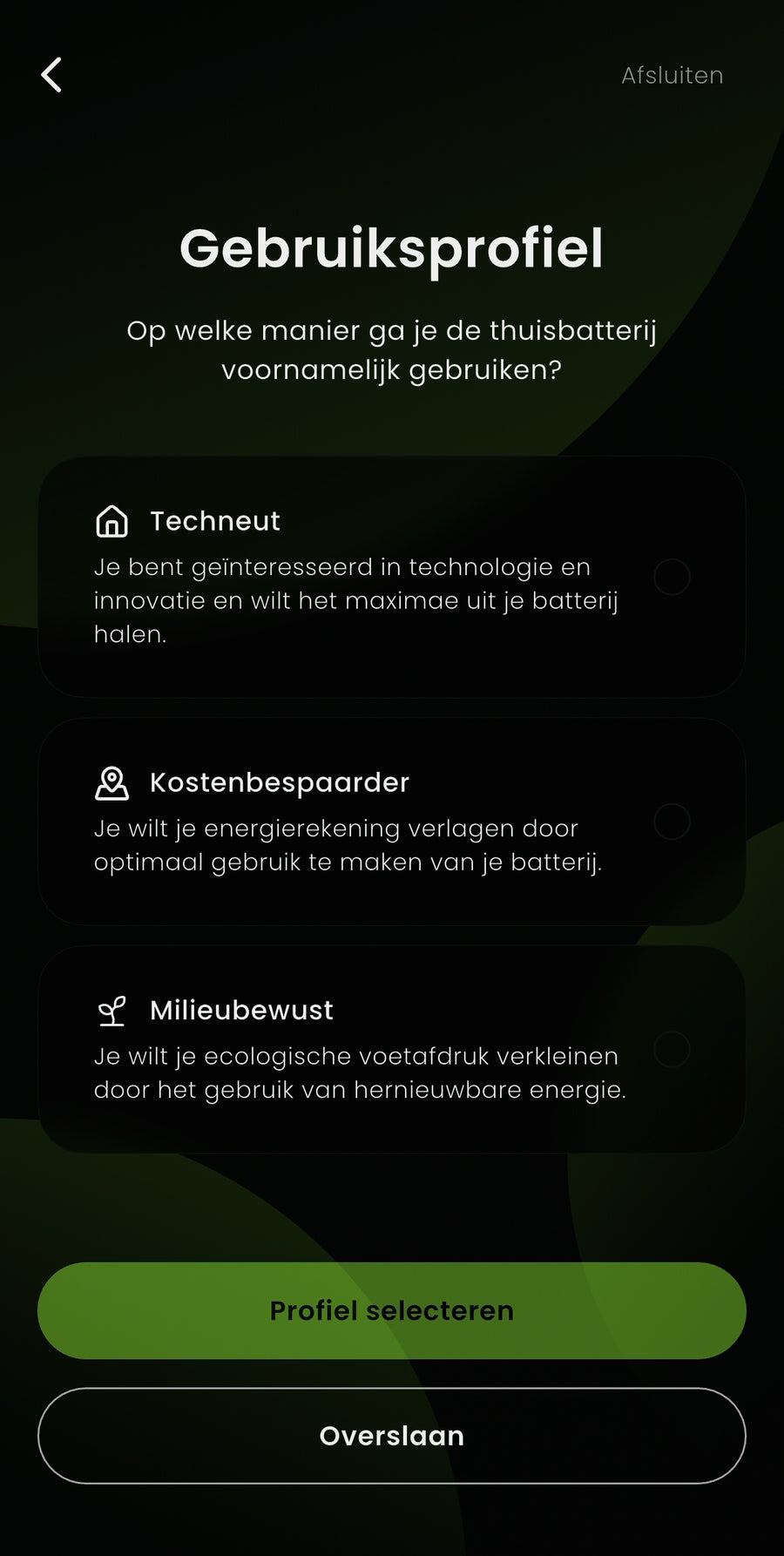
In this step, specify how you mainly want to use your ZinVolt home battery. This helps the app prepare suitable default settings for you.
You can choose from several profiles:
- Techneut (Tech enthusiast)
- Kostenbespaarder (Cost saver)
- Milieubewust (Environmentally conscious)
Read the descriptions and choose the profile that best matches your situation.
Unsure? No problem: you can change this profile in the app later.
Tap ‘Profiel selecteren’ (Select profile) to continue, or choose ‘Overslaan’ (Skip) to set it later.
Continue to step 8
ZinVolt app
Dashboard
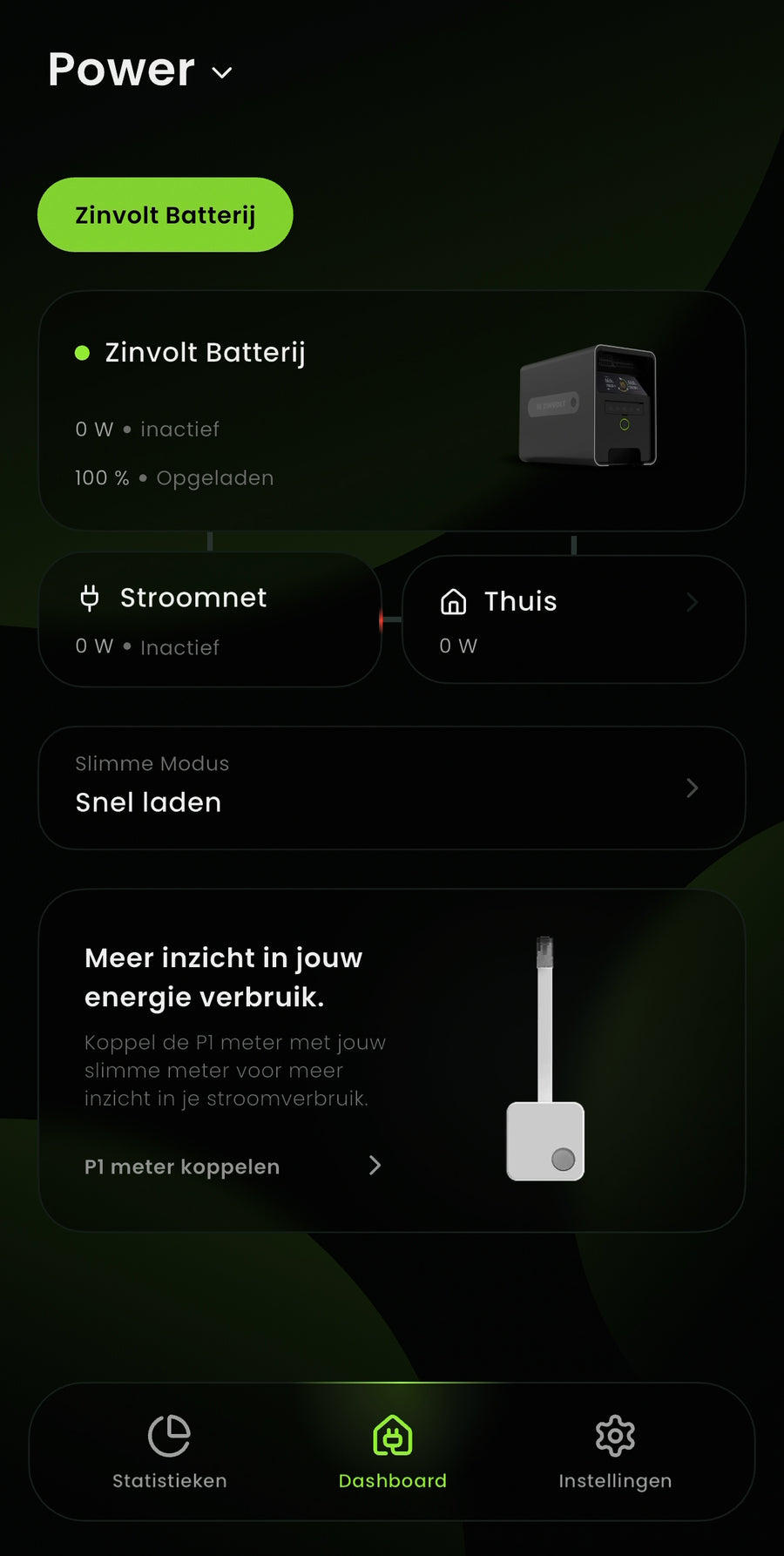
If everything is configured correctly, you now arrive at the ZinVolt app dashboard. Congratulations! Your ZinVolt home battery is successfully connected and ready to use.
On this dashboard, you can see at a glance:
- Your home's current energy use
- The battery's status and charge level
- The grid connection and direction of energy flows
From here you can:
- Change the battery mode
- Understand your energy use
In the next step, we will connect and set up the P1 dongle PRO.
Continue to step 10
ZinVolt app
Pair P1-dongle PRO
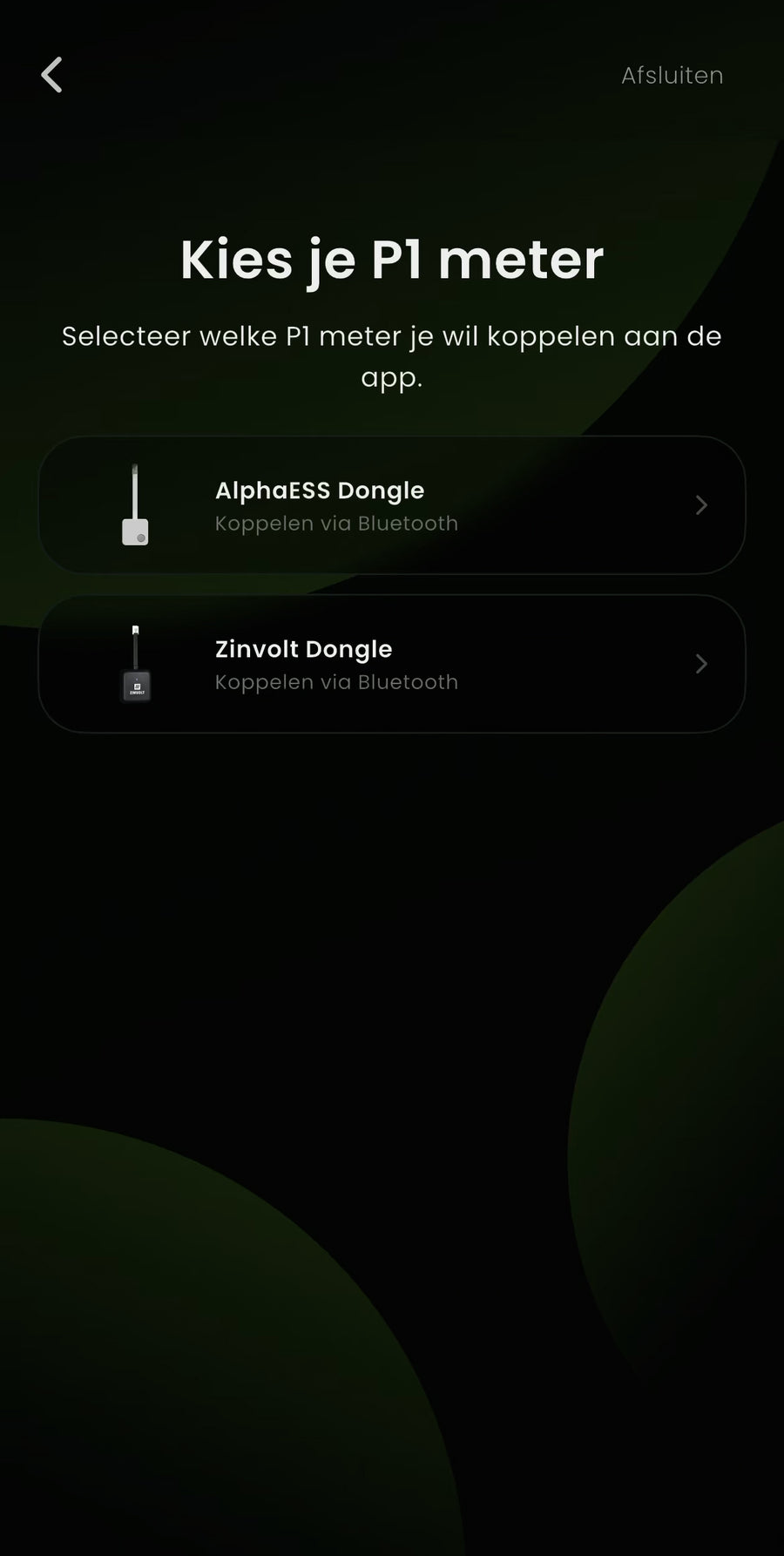
On the dashboard, tap P1 meter koppelen (Connect P1 meter) to start setting up the P1 meter.
The app guides you through pairing step by step. Tap ‘Volgende’ (Next) to continue.
Next, choose which P1 dongle PRO you want to connect. The dongle supplied as standard with the ZinVolt Power is the AlphaESS dongle. The ZinVolt dongle is the new P1 dongle PRO and is available separately from our online store.
Select the dongle currently connected to your smart meter and continue setup. Stay close to the P1 dongle PRO during these steps so pairing can complete correctly.
Continue to step 11
Using the ZinVolt P1 dongle? Also see the guide for connecting your P1 dongle to a home battery.
ZinVolt app
Connecting the P1 dongle PRO
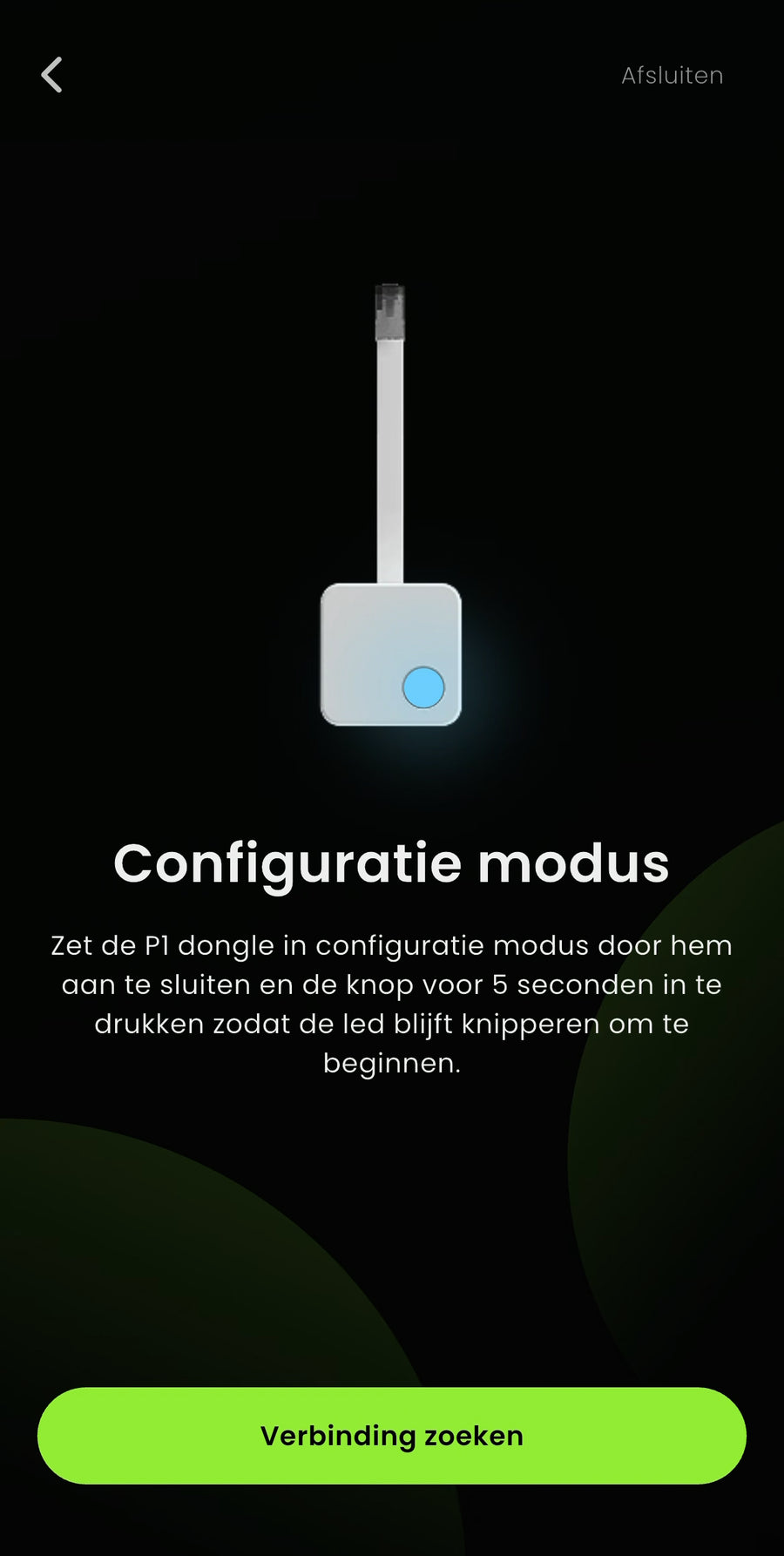
In this step, you will connect and configure the P1 meter in the app.
The app automatically guides you through searching for the P1 meter, configuring it and connecting to Wi-Fi.
Follow the on-screen instructions and stay close to the dongle throughout. Setup may take a few moments. Once configuration succeeds, the P1 meter is ready to use and connected to your dashboard.
Tap Configuratie afronden (Finish configuration) to continue.
Continue to step 12
ZinVolt app
Everything successfully set up
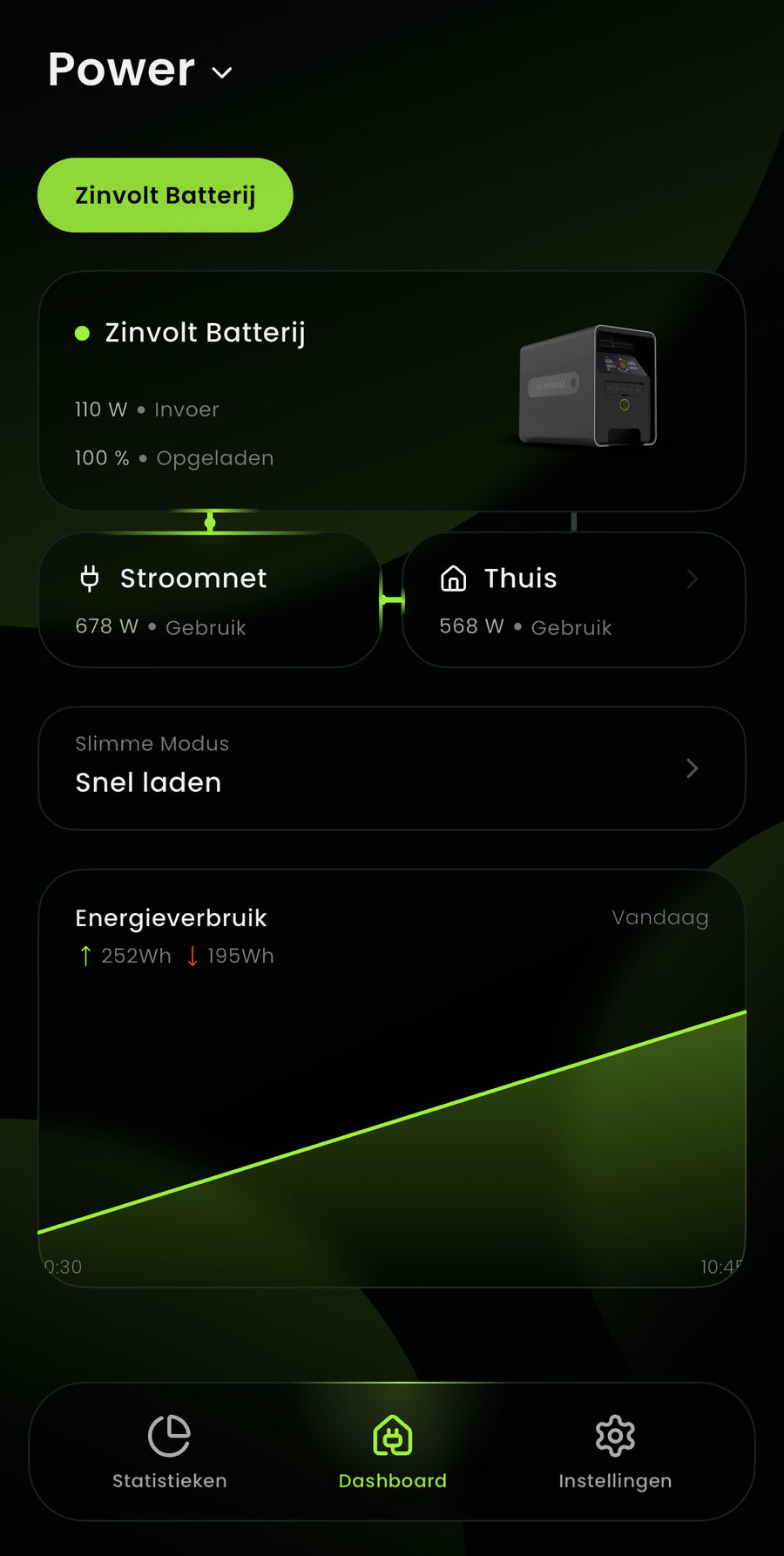
If all went well, your dashboard now looks similar to this.
Your ZinVolt home battery and the P1 dongle PRO are successfully connected and working together in the app.
From this dashboard, you can:
- See how much electricity your home is using at a glance
- Track your home battery's status and power
- View statistics and change the battery mode
Have questions later, or is something not working as expected?
Please get in touch using the contact form. We are happy to help:
Go to the contact page
Continue with the ZinVolt app guide for help with the dashboard and settings, or view all ZinVolt guides.
Did a step fail?
Is your ZinVolt Power not being found? Check that Bluetooth is on and stay close to the battery. Follow the pairing steps in this guide and search again in the app. Still cannot find your Power? View installation help or contact ZinVolt.
Having trouble with Wi-Fi or the P1 connection? Check your current Wi-Fi password and follow the P1 dongle PRO guide. There you can choose the route with or without a home battery. For recurring problems, see the targeted checks under installation questions.
Unsure whether everything is connected correctly, or still having trouble after the checks? Contact ZinVolt and tell us which system you have and which step is not working.
Contact
Contact us
Having trouble with the steps on our website? Ask your question below and we'll help you as soon as possible.
Form
How can we help?
Leave your details and question. The clearer your question, the faster we can help.
We only use your details to reply to your question.


