
ZinVolt Manual
Install ZinVolt Power and set up the ZinVolt app
In this guide, we will help you prepare your ZinVolt Power with ZinVolt Mate modules and connect them to the ZinVolt app. Make sure you are near the installation and take your time.
Find the right instructions
Where would you like to start?
Follow the guide from top to bottom, or jump to the step where you left off.
Before you begin
What you need
- Your phone with Bluetooth enabled
- The ZinVolt app installed
- An active Wi-Fi connection on 2.4 GHz
- Your Wi-Fi password
- Your ZinVolt Power and ZinVolt Mate modules connected and switched on
What you will do
- Download the ZinVolt app and create an account
- Add the ZinVolt Power in the app
- Set up Wi-Fi to bring your system online
- Check that everything appears on the dashboard
Download the ZinVolt app using the buttons below


Download user manuals
Download the ZinVolt Power and ZinVolt Mate manuals here.
ZinVolt Power manual (Dutch & English) PDF ZinVolt Mate manual (Dutch & English) PDFZinVolt app
Unpacking and Setting Up Your ZinVolt Power

Your ZinVolt Power has arrived. When you have some time to spare, you can start unpacking and assembling the battery. First take the ZinVolt Power out of the box and place it in your chosen location. Make sure it is stable and you can easily reach the connections.
Next, unpack the ZinVolt Mate module(s). These modules can be placed on top of each other to form one unit.
If you have one Mate module, place it directly in your chosen location.
If you have several Mate modules, stack them neatly so all connection points remain accessible on the same side.
Once all modules are stacked, connect the Mate modules using the supplied cables. These cables provide communication and power transfer between the modules. Connect them firmly to the marked connectors.
Then connect the last Mate module to the ZinVolt Power unit using the supplied main cable. You do not need to connect the wall socket plug at this stage.
Consult the supplied user manual here (Dutch & English) for the exact connection sequence.
Is everything connected correctly? Continue to step 2.
ZinVolt app
Creating an account in the ZinVolt app
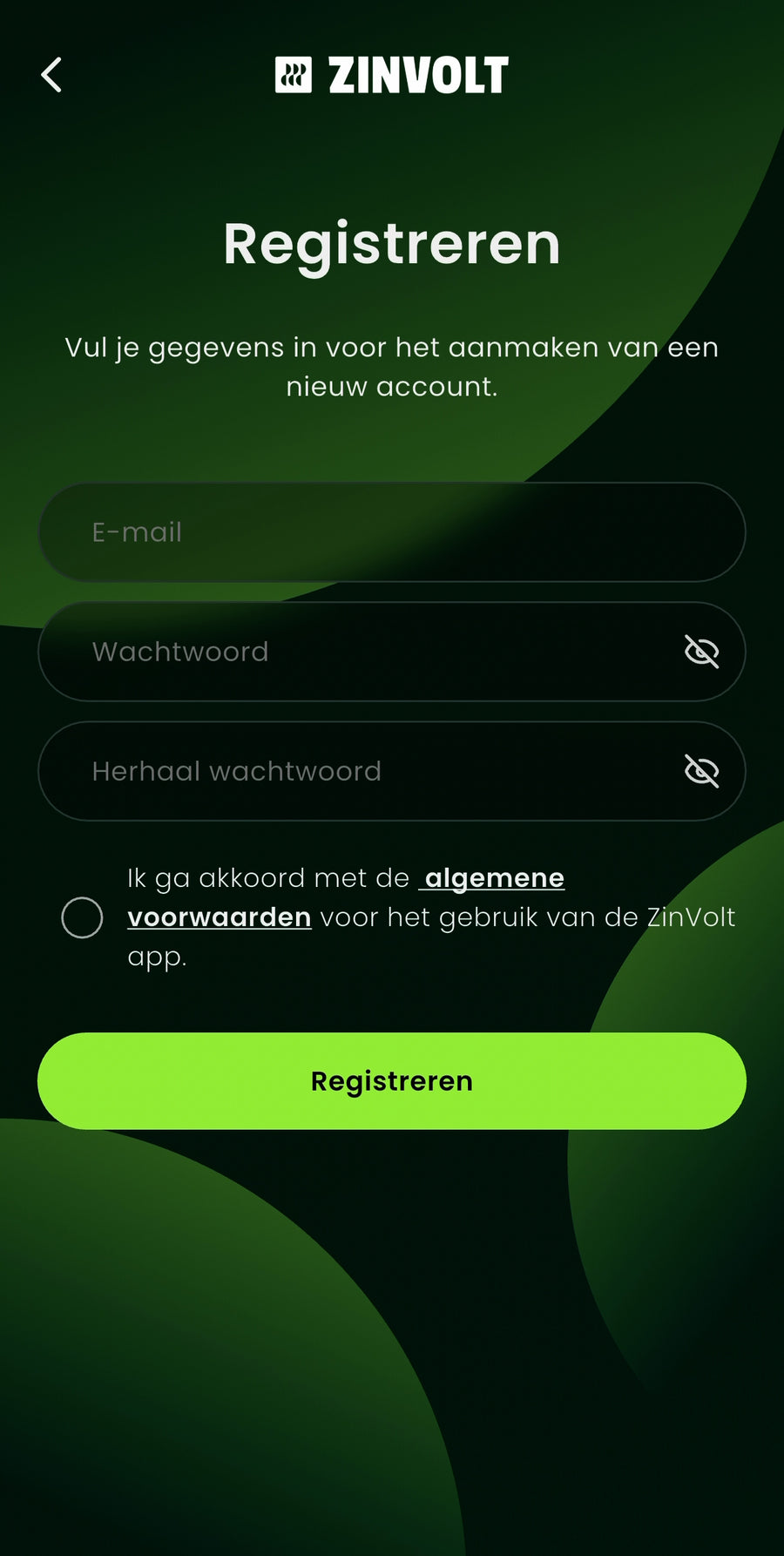
Now that the battery is set up correctly, it is time to configure the ZinVolt app and connect your battery.
Make sure the ZinVolt app is installed. Search for ZinVolt in the App Store or Play Store, or use the download buttons at the top of this page.
Open the app and follow the steps to create an account.
Enter your email address and choose a strong password. After registering, you will receive an email to activate your account.
Open this email and click the activation link.
Your account is now active and ready to use.
Continue to step 3
ZinVolt app
Getting started with the ZinVolt app
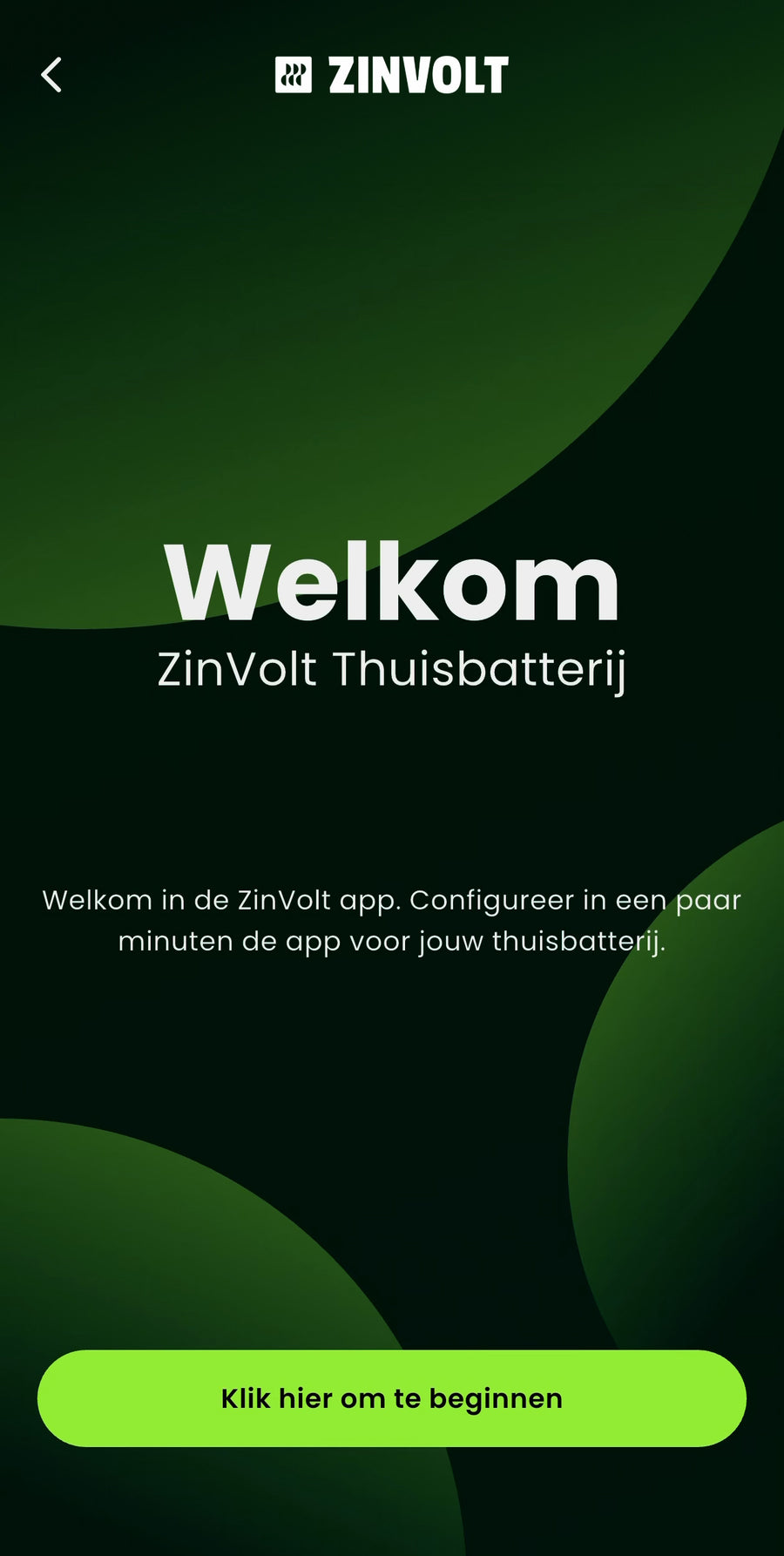
After opening the ZinVolt app, you will be guided through setting up your home battery. You will first see a welcome screen and can start connecting the battery straight away.
During these first steps, the app asks you to check that the home battery is in a safe location and has enough space around it for ventilation. These checks are important for safe and correct use of your ZinVolt home battery, so read them carefully.
The app also asks a few questions about your situation and how you will use the battery. Answer them carefully and tap ‘Verder’ (Continue) each time to proceed.
Once you have completed everything, you automatically move to the next step of connecting your ZinVolt home battery.
Continue to step 4
ZinVolt App
Find your home battery
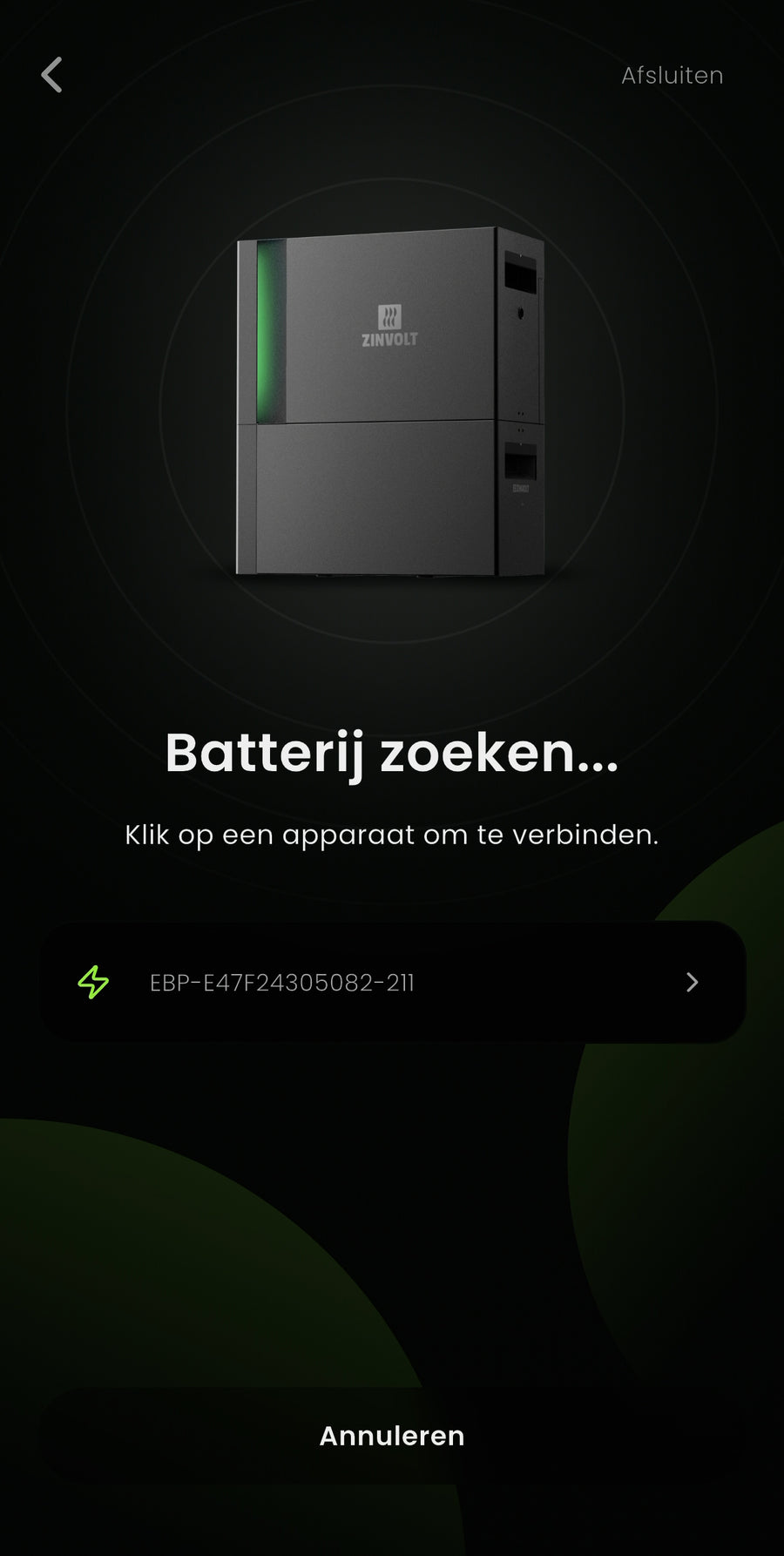
The app guides you through connecting the battery step by step.
Make sure Bluetooth is enabled beforehand on your phone. Without Bluetooth, the home battery cannot be found.
You will see questions about the battery's connection and use. Read them carefully. This is important for using the battery safely and correctly.
Complete every step shown in the app and tap ‘Verder’ (Continue) each time to proceed.
The app then starts searching for the battery.
Your battery appears on screen. Tap it to select it and move to the next step.
Continue to step 5
ZinVolt app
Enter serial number
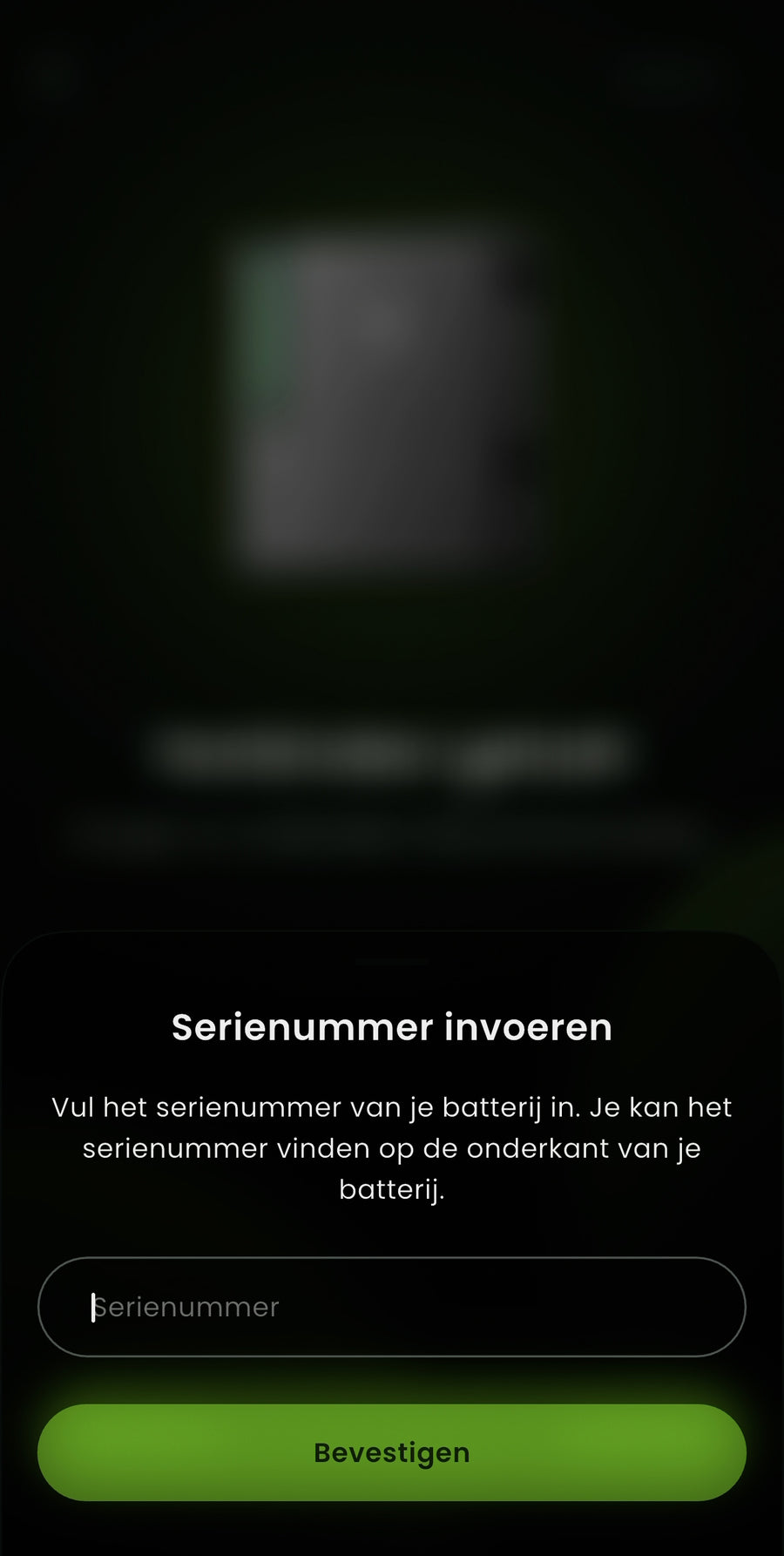
After selecting the battery, the app asks you to enter its serial number.
Enter the serial number of the ZinVolt Power you want to connect to.
This number must exactly match the home battery's serial number. If it is incorrect, the battery cannot be connected.
You can find the serial number on the underside of the ZinVolt Power.
Use only the ZinVolt Power serial number, not the number of any Mate modules or the P1 dongle PRO.
The ZinVolt Power serial number starts with ALG00.
After entering it, tap ‘Bevestigen’ (Confirm) to continue.
Continue to step 6
ZinVolt app
Connect to Wi-Fi and complete the setup
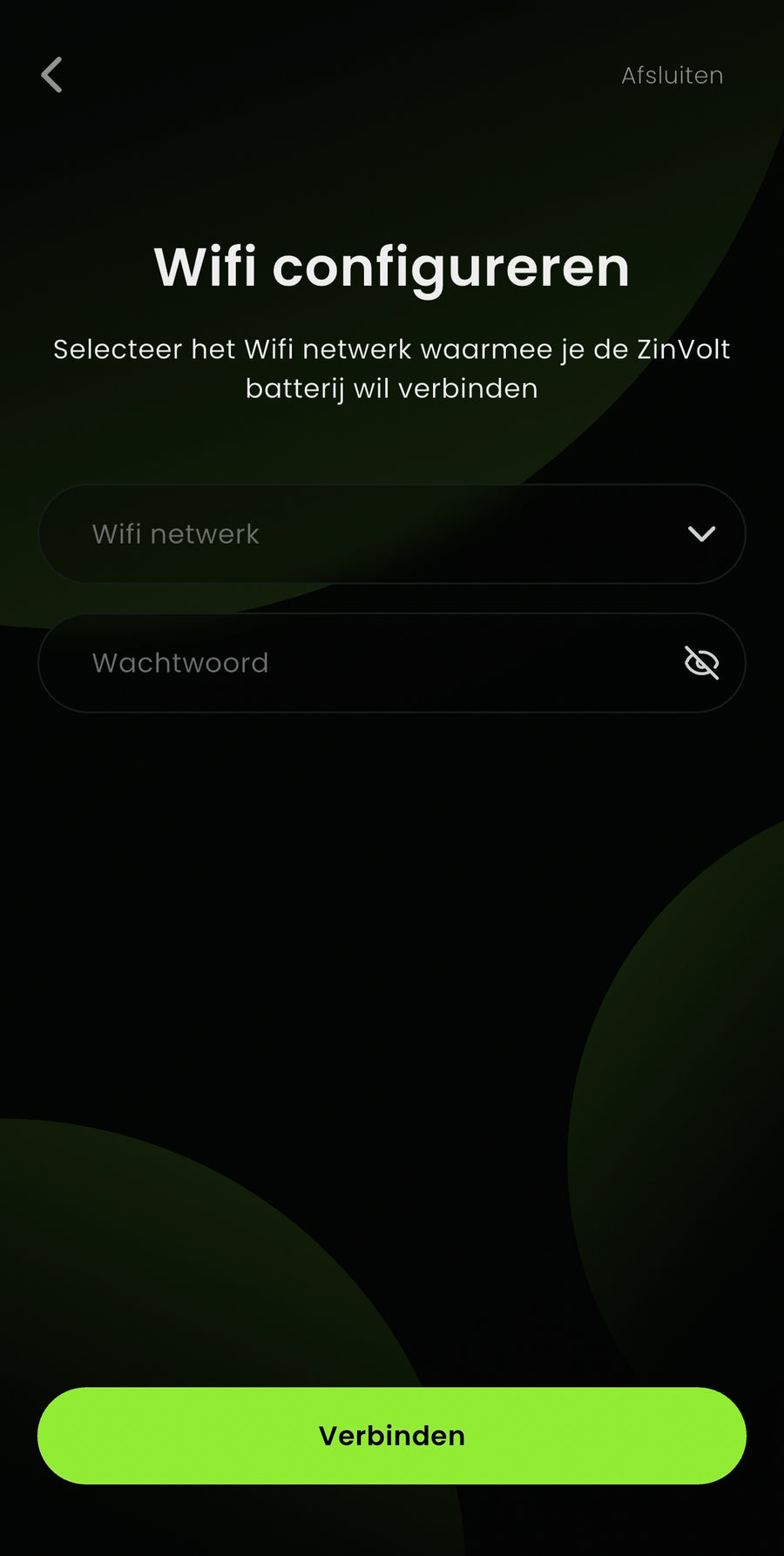
In this step, connect the ZinVolt Power to your Wi-Fi network. Select the correct network and enter its password.
Make sure you use the correct, current Wi-Fi password. Unsure whether it has recently changed? Check your phone's or router's Wi-Fi settings before continuing.
After you enter the network and password, the battery is configured automatically. This may take a little while. Once configuration succeeds, a confirmation appears and your ZinVolt home battery is ready to use in the app.
Tap ‘Verder’ (Continue) to finish configuration.
Continue to step 7
ZinVolt App
Choose user profile
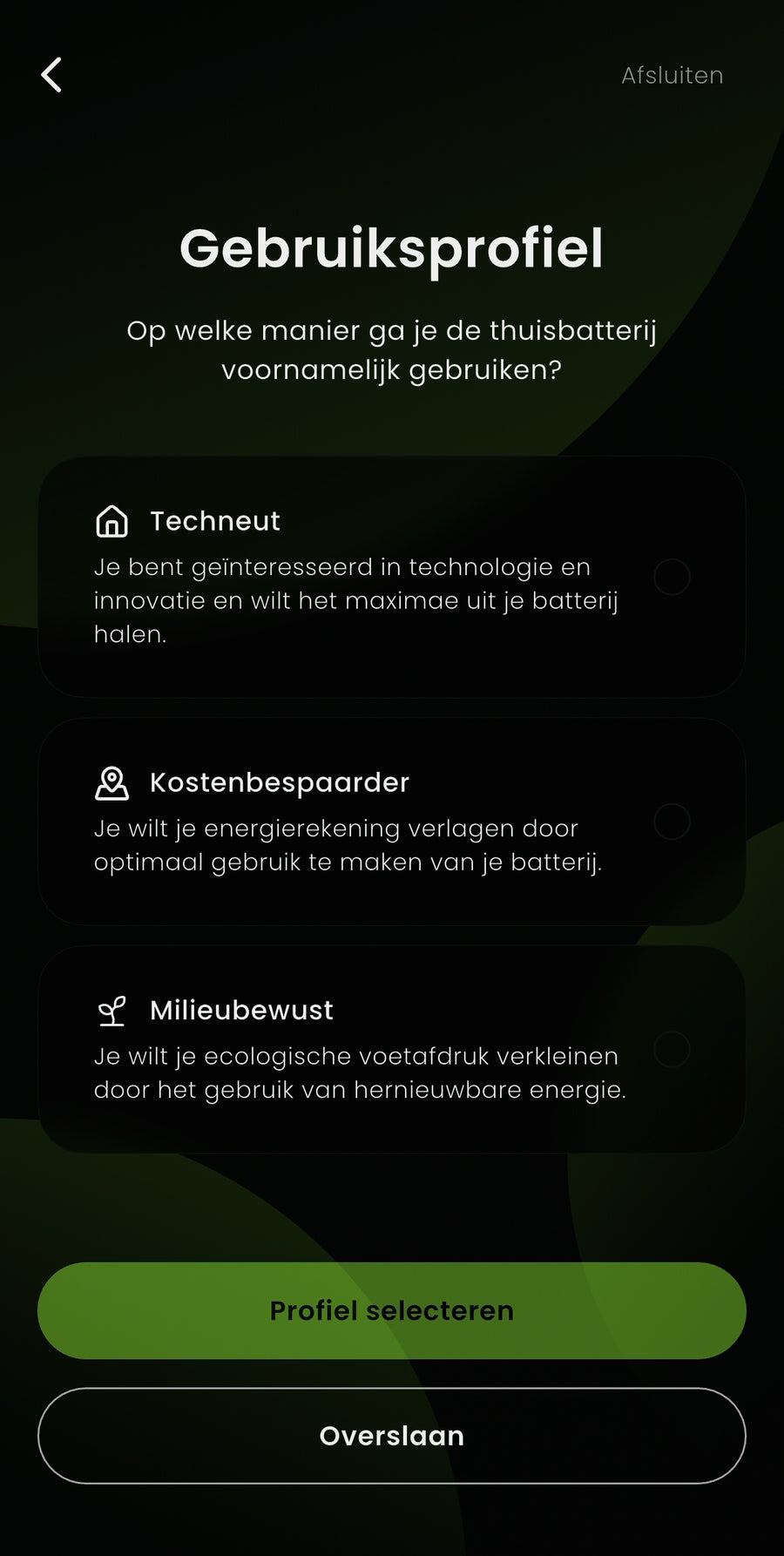
In this step, specify how you mainly want to use your ZinVolt home battery. This helps the app prepare suitable default settings for you.
You can choose from several profiles:
- Techneut (Tech enthusiast)
- Kostenbespaarder (Cost saver)
- Milieubewust (Environmentally conscious)
Read the descriptions and choose the profile that best matches your situation.
Unsure? No problem: you can change this profile in the app later.
Tap ‘Profiel selecteren’ (Select profile) to continue, or choose ‘Overslaan’ (Skip) to set it later.
Continue to step 8
ZinVolt app
Dashboard
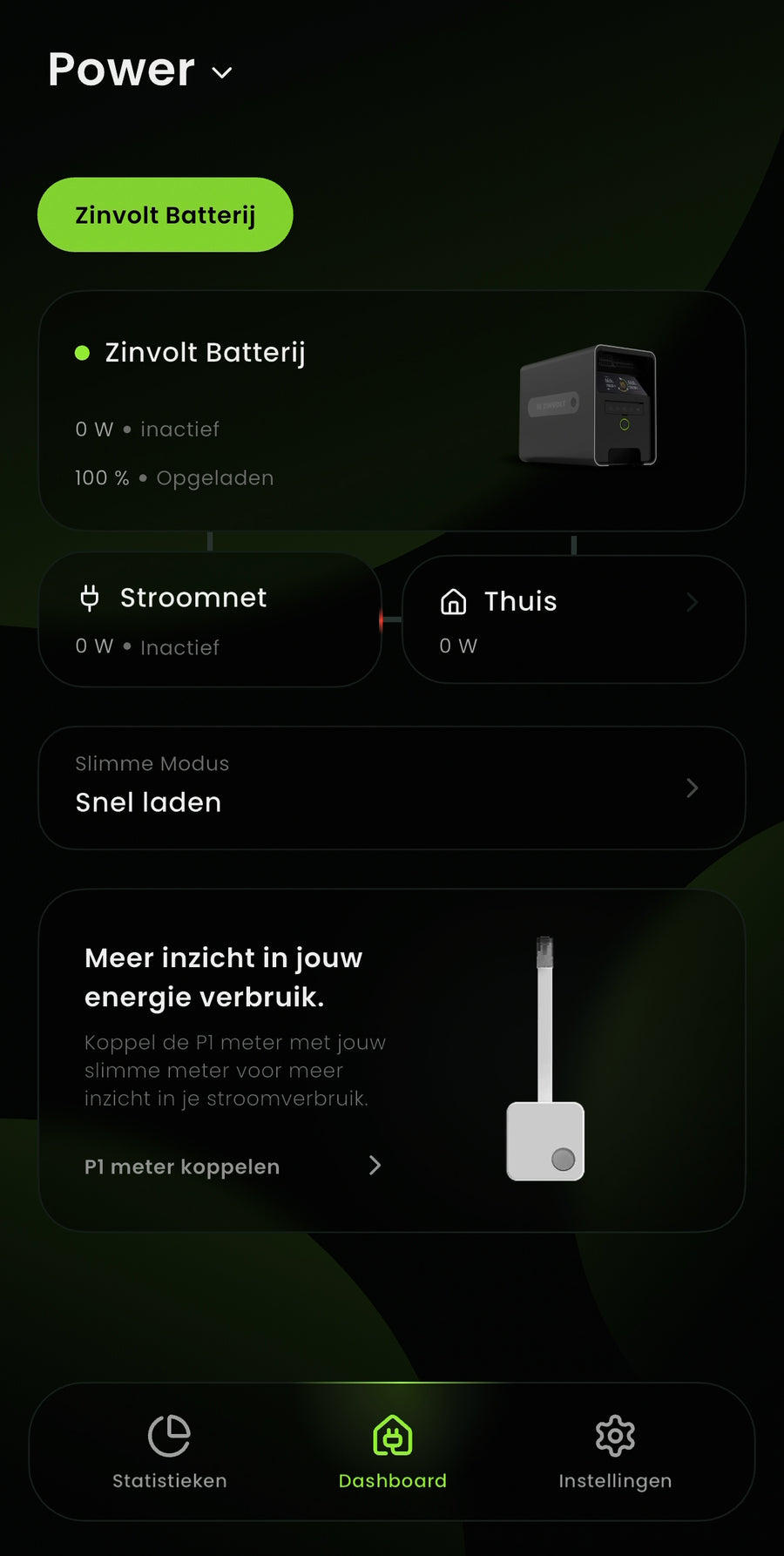
If everything is configured correctly, you now arrive at the ZinVolt app dashboard. Congratulations! Your ZinVolt home battery is successfully connected and ready to use.
On this dashboard, you can see at a glance:
- Your home's current energy use
- The battery's status and charge level
- The grid connection and direction of energy flows
From here you can:
- Change the battery mode
- Understand your energy use
In the next step, we will connect and set up the P1 dongle PRO.
Continue to step 9
ZinVolt app
Pair P1 dongle PRO
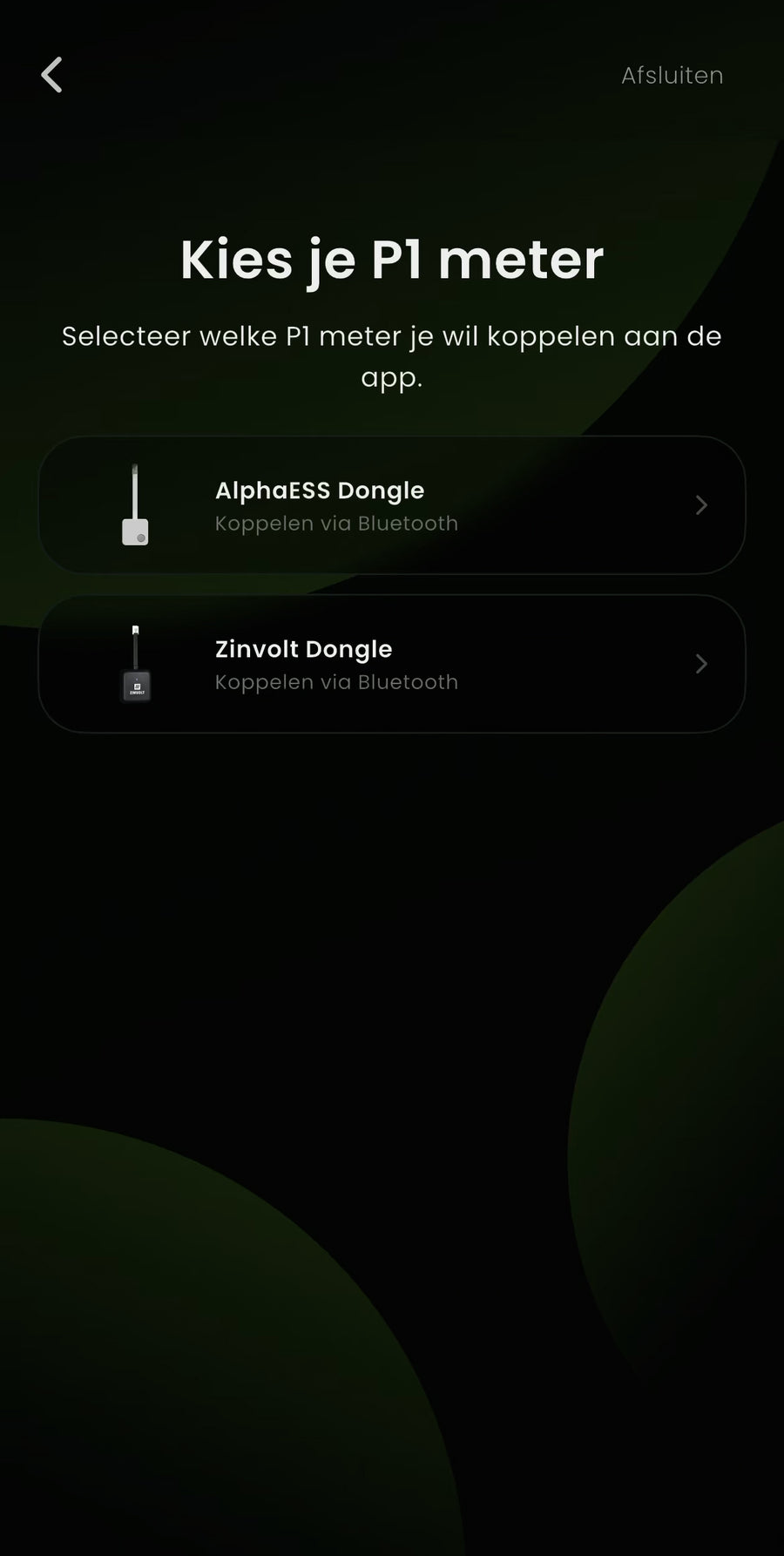
On the dashboard, tap P1 meter koppelen (Connect P1 meter) to start setting up the P1 meter.
The app guides you through pairing step by step. Tap ‘Volgende’ (Next) to continue.
Next, choose which P1 dongle PRO you want to connect. The dongle supplied as standard with the ZinVolt Power is the AlphaESS dongle. The ZinVolt dongle is the new P1 dongle PRO and is available separately from our online store.
Select the dongle currently connected to your smart meter and continue setup. Stay close to the P1 dongle PRO during these steps so pairing can complete correctly.
Continue to step 10
Using the ZinVolt P1 dongle? Also see the guide for connecting your P1 dongle to a home battery.
ZinVolt app
Connecting the P1 dongle PRO
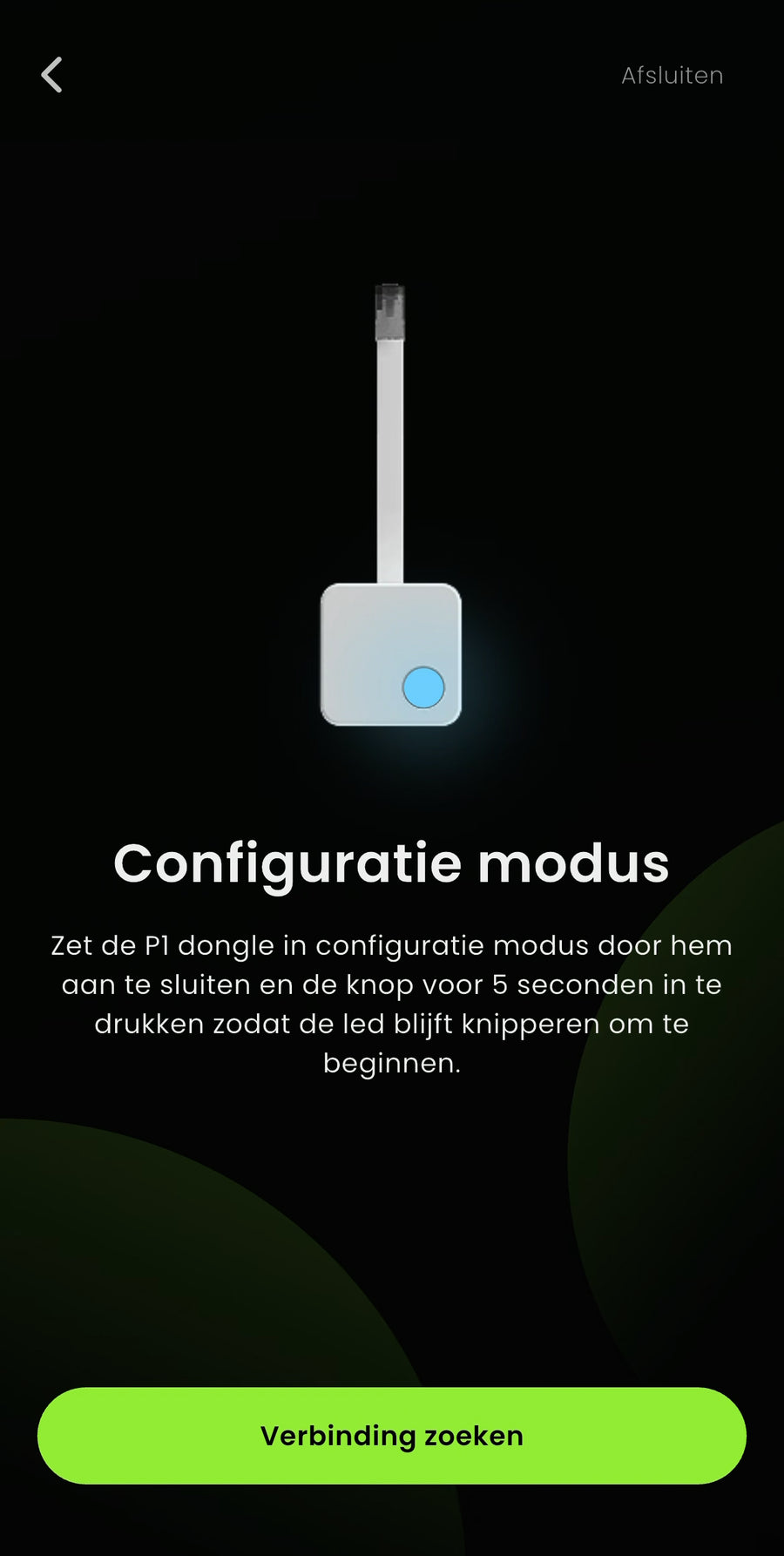
In this step, you will connect and configure the P1 meter in the app.
The app automatically guides you through searching for the P1 meter, configuring it and connecting to Wi-Fi.
Follow the on-screen instructions and stay close to the dongle throughout. Setup may take a few moments. Once configuration succeeds, the P1 meter is ready to use and connected to your dashboard.
Tap Configuratie afronden (Finish configuration) to continue.
Continue to step 11
Important for good calibration
Fully charge the home battery once so the system can correctly identify its capacity.
- Temporarily set the home battery to the mode Fast charging
- Allow the home battery to charge fully to 100% once
- This helps the home battery calibrate correctly
After the first full charge cycle, you can change the mode back to your preferred setting at any time.
Want the battery to respond to surplus solar electricity? After fast charging to 100%, set the battery to Zelfgebruik (Self-consumption).
ZinVolt app
Everything successfully set up
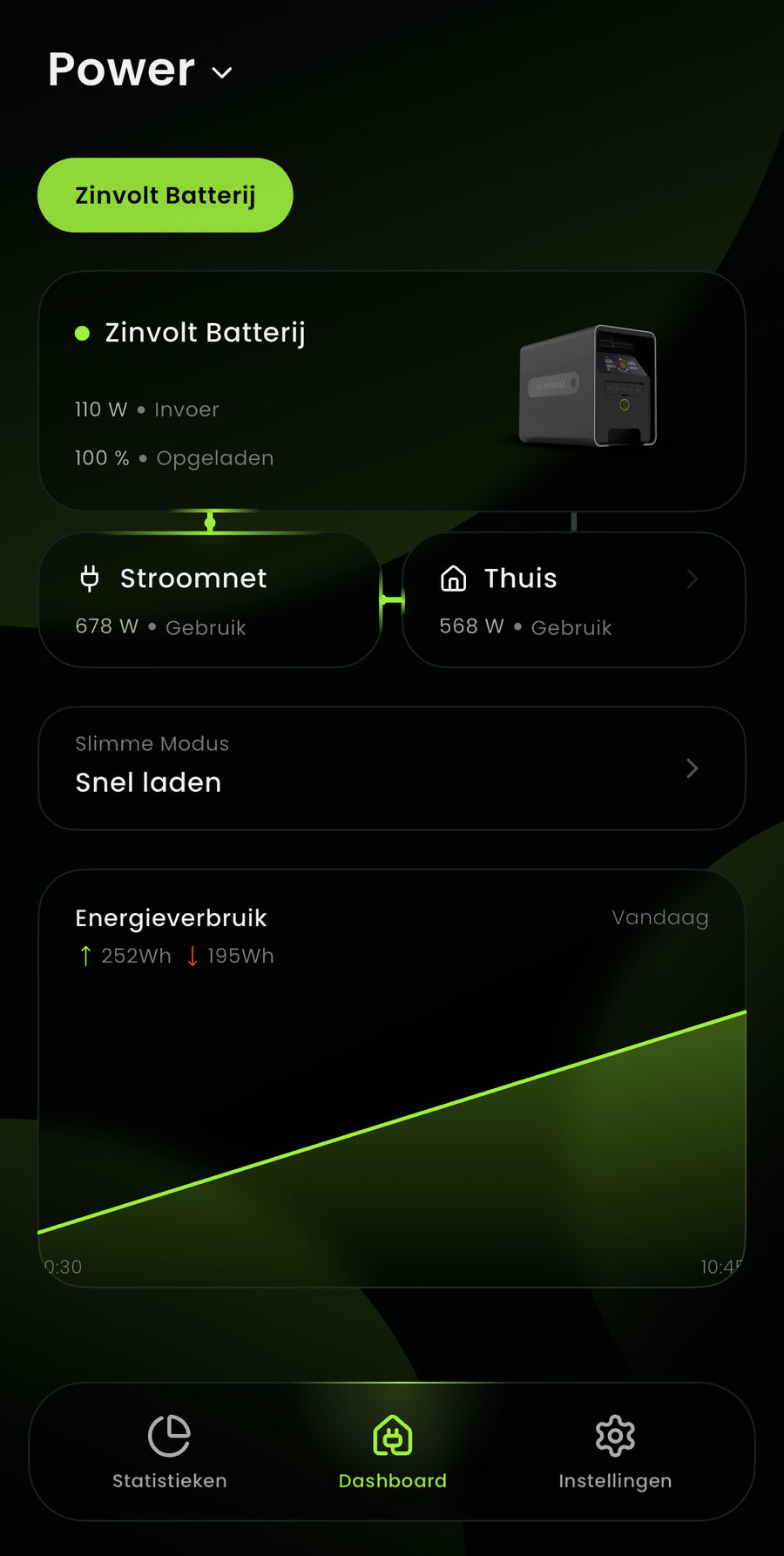
If all went well, your dashboard now looks similar to this.
Your ZinVolt home battery and the P1 dongle PRO are successfully connected and working together in the app.
From this dashboard, you can:
- See how much electricity your home is using at a glance
- Track your home battery's status and power
- View statistics and change the battery mode
Have questions later, or is something not working as expected?
Please get in touch using the contact form. We are happy to help:
Go to the contact page
Continue with the ZinVolt app guide for help with the dashboard and settings, or view all ZinVolt guides.
Step not working out?
Is your ZinVolt Power not being found? Check that Bluetooth is on and stay close to the battery. Follow the pairing steps in this guide and search again in the app. Still cannot find your Power? View installation help or contact ZinVolt.
Having trouble with Wi-Fi or the P1 connection? Check your current Wi-Fi password and follow the P1 dongle PRO guide. There you can choose the route with or without a home battery. For recurring problems, see the targeted checks under installation questions.
Unsure whether everything is connected correctly, or still having trouble after the checks? Contact ZinVolt and tell us which system you have and which step is not working.


