
ZinVolt Manual
Installing ZinVolt Base and setting up the ZinVolt app
In this guide, we'll help you prepare your ZinVolt Base with Stack modules and connect it to the ZinVolt app. Make sure you are near the installation and take your time to complete the process.
Find the right instructions
Where would you like to start?
Follow the guide from top to bottom, or jump to the step where you left off.
Before you begin
What you need
- Your phone with Bluetooth enabled
- The ZinVolt app installed
- An active Wi-Fi connection on 2.4 GHz
- Your Wi-Fi password
- Your ZinVolt Base and Stack modules connected and switched on
Check that your dongles are working correctly
What you will do
- Download the ZinVolt app and create an account
- Add the ZinVolt Base in the app
- Set up Wi-Fi to bring your system online
- Check that everything appears on the dashboard
Download the ZinVolt app using the buttons below


ZinVolt app
Unpacking and Setting Up the ZinVolt Base

Your ZinVolt Base has arrived. When you have some time to spare, you can start unpacking and assembling the battery.
First take the ZinVolt Base out of the box and place it in your chosen location. Remove the protective cover over the connectors on the underside of the ZinVolt Base.
Next, unpack the ZinVolt Stack module(s). Each Stack module has a protective cover on the top and bottom.
- If you have one Stack module, remove only the top protective cover.
- If you have two Stack modules:
On the upper module, remove both the top and bottom covers
On the lower module, remove only the top protective cover
This allows all connectors to join properly. Now stack the modules. The modules click into place correctly.
Once all modules are stacked, connect the plug to the ZinVolt Base; you do not need to plug it into the wall socket yet.
Consult the supplied user manual here.
Is everything connected correctly? Continue to step 2.
ZinVolt app
Create account in the ZinVolt app
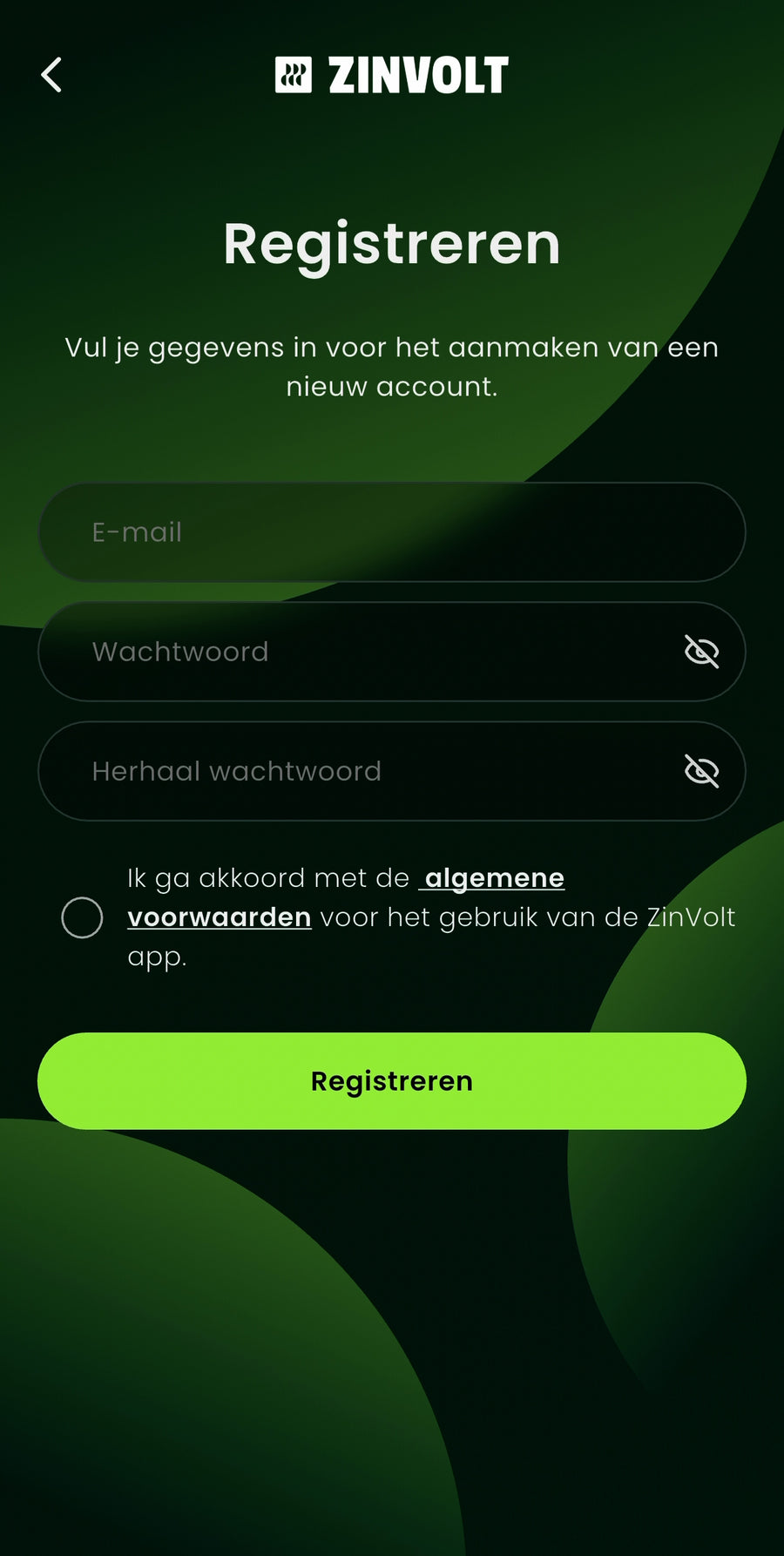
Now that the battery is set up correctly, it is time to configure the ZinVolt app and connect your battery.
Make sure the ZinVolt app is installed. Search for ZinVolt in the App Store or Play Store, or use the download buttons at the top of this page.
Open the app and follow the steps to create an account.
Enter your email address and choose a strong password. After registering, you will receive an email to activate your account.
Open this email and click the activation link.
Your account is now active and ready to use.
Continue to step 3
ZinVolt app
Getting started with the ZinVolt app
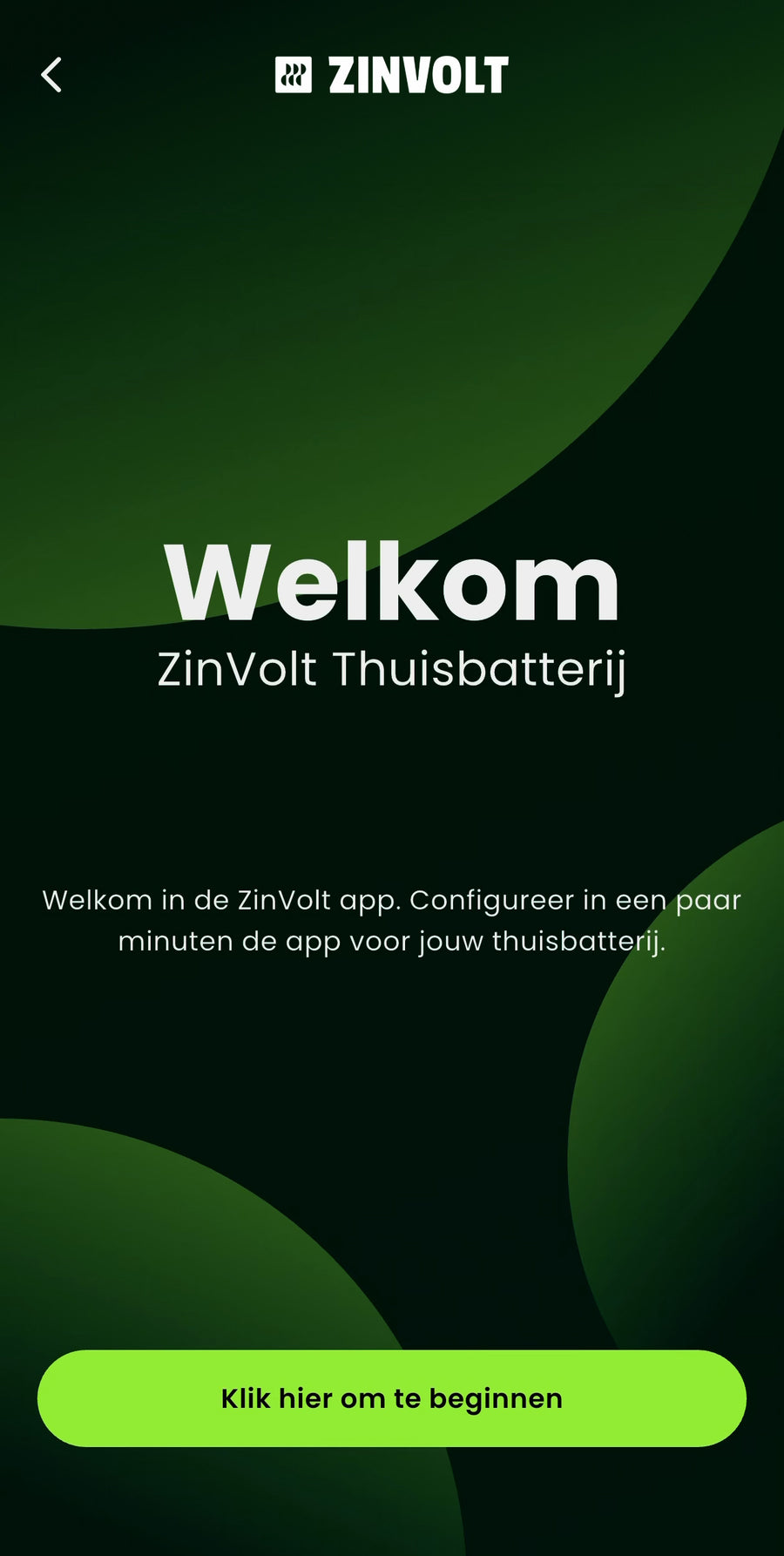
After opening the ZinVolt app, you will be guided through setting up your home battery. You will first see a welcome screen and can start connecting the battery straight away.
During these first steps, the app asks you to check that the home battery is in a safe location and has enough space around it for ventilation. These checks are important for safe and correct use of your ZinVolt home battery, so read them carefully.
The app also asks a few questions about your situation and how you will use the battery. Answer them carefully and tap ‘Verder’ (Continue) each time to proceed.
Once you have completed everything, you automatically move to the next step of connecting your ZinVolt home battery.
Continue to step 4
Note before you continue
Check these points before connecting your ZinVolt Base.
- Bluetooth is on
- Wi-Fi is connected
- Location services are on
- VPN is switched off
ZinVolt app
Connecting a home battery
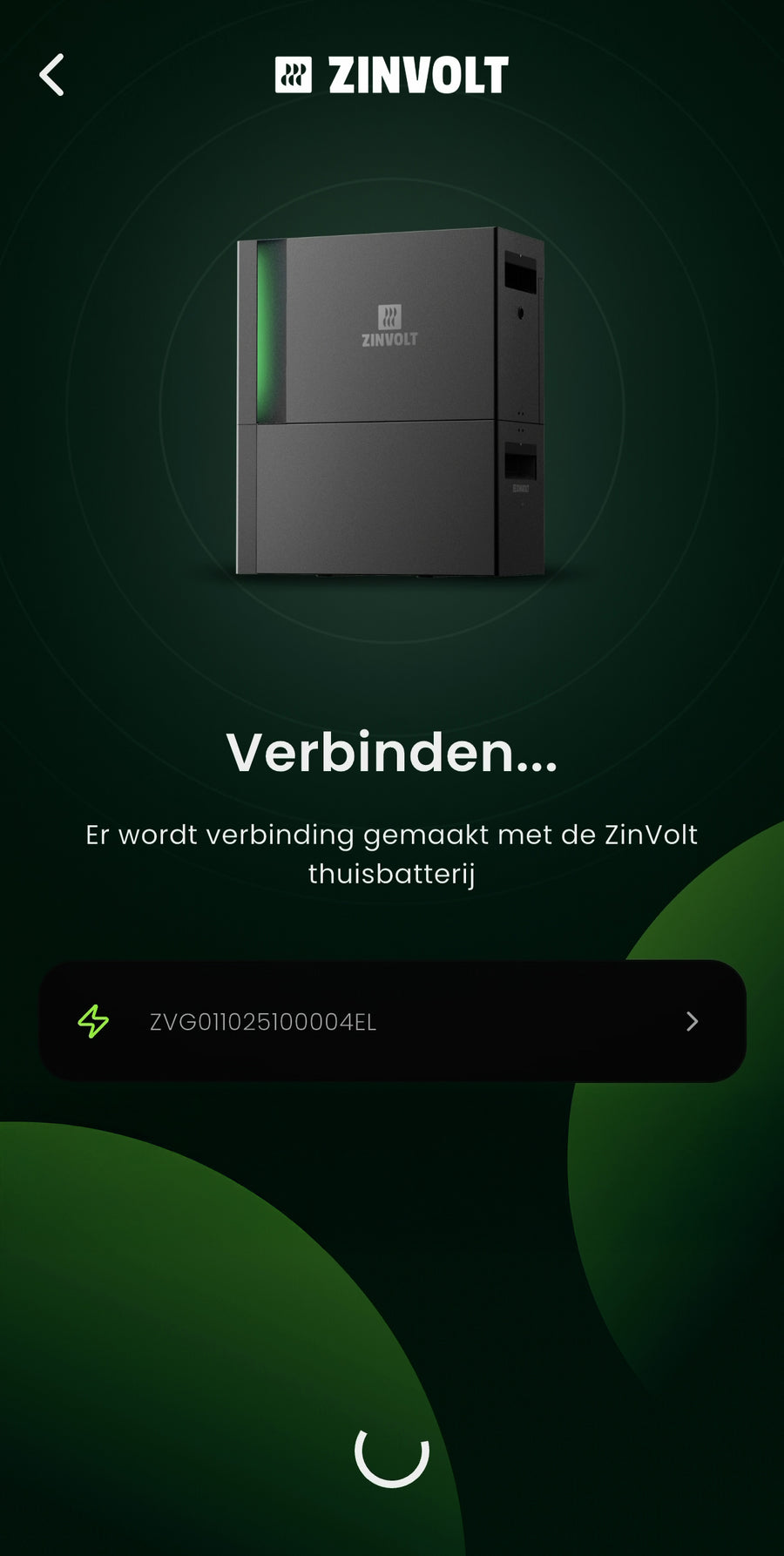
It is time to connect the battery to the ZinVolt app. Make sure Bluetooth is enabled on your phone, otherwise the battery cannot be found.
The app automatically searches for available batteries. Your ZinVolt battery will appear on screen. Tap the battery to select it. The app will now connect to it.
Does the battery not appear straight away?
A restart may help. Switch off the mains power supply to the battery, for example using the isolator or the plug for your connection. Hold the on/off button on the side of the ZinVolt Base for 5 seconds. Release the button. Then wait until all status lights are off. Restore mains power to the battery. The battery starts automatically.
Then search for the battery again in the app. Still not found? Contact ZinVolt. View the full steps to restore Bluetooth. Connected successfully? Continue to the next step to configure Wi-Fi.
Continue to step 5.
ZinVolt app
Set up Wi-Fi
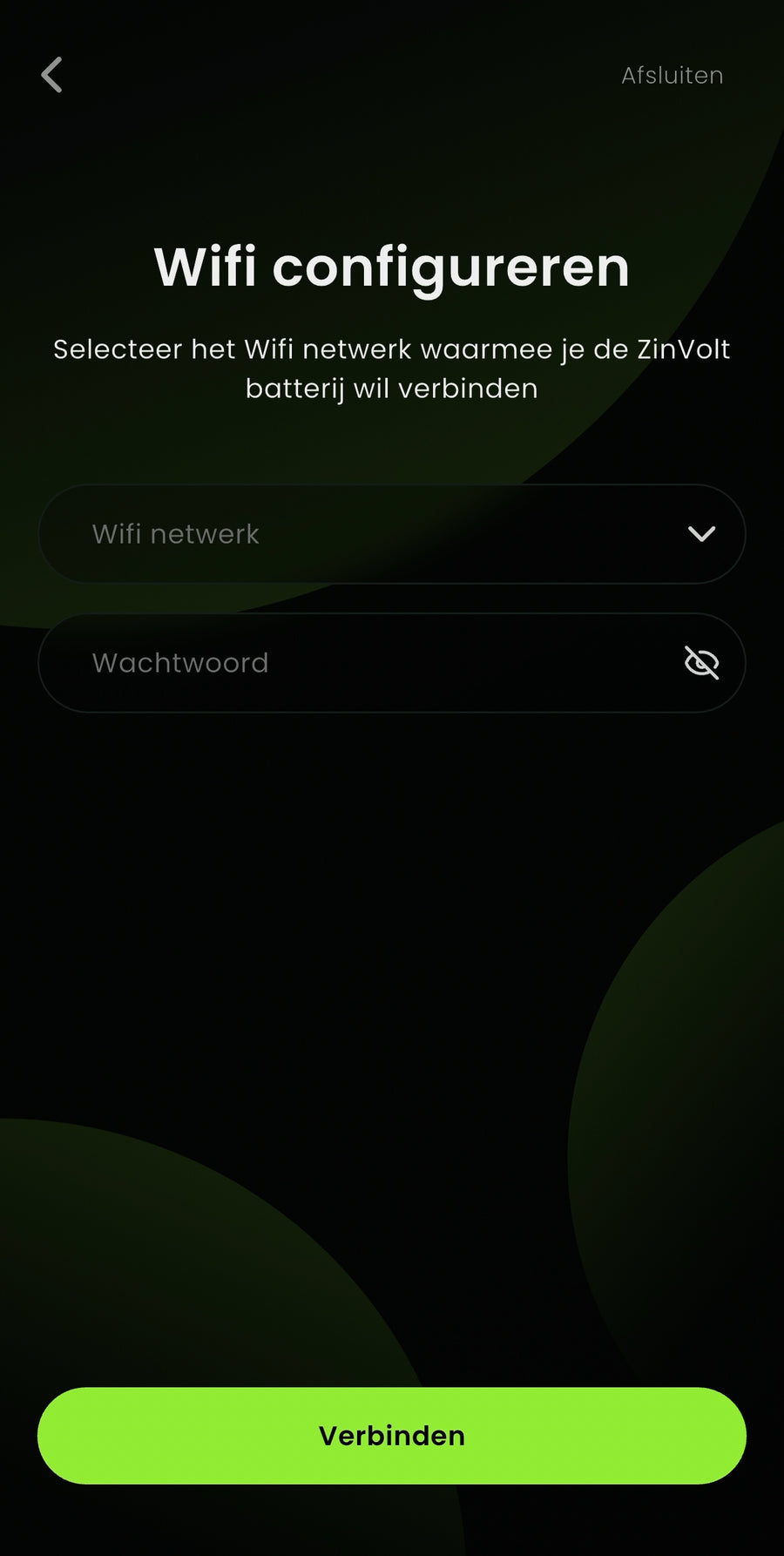
Now that the app has connected to your ZinVolt battery, it is time to bring the home battery online.
Do this by connecting the battery to your Wi-Fi network.
Select the correct Wi-Fi network, enter its password and tap Verbinden (Connect).
Make sure you use the correct password and check whether it has recently changed.
Once configuration succeeds, your battery is fully set up and ready to use. We will return to the dashboard and set up the P1 dongle PRO.
Continue to step 6.
ZinVolt app
Pair Dashboard and P1 dongle PRO
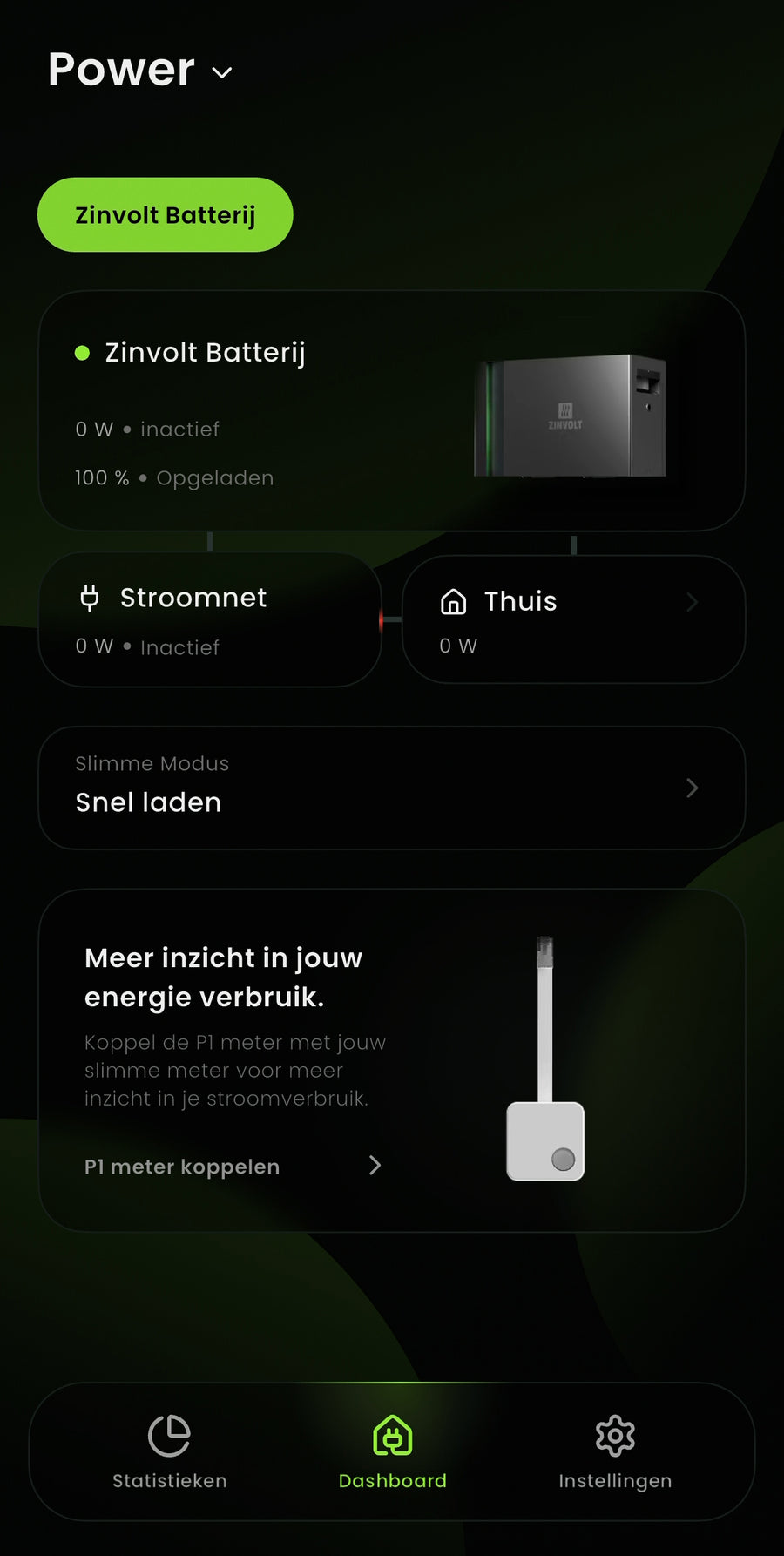
The battery is now fully set up and you arrive at the ZinVolt app dashboard.
Here you can change your home battery's mode, view statistics and follow energy flows.
To let the battery work intelligently with your home and solar panels, it is important to connect the P1 dongle PRO now too.
On the dashboard, tap ‘P1-dongle PRO koppelen’ (Connect P1 dongle PRO) and follow the steps in the app. This gives the battery insight into your energy use so it can respond automatically.
Continue to step 7
ZinVolt app
Pair P1 dongle PRO

In this step, you will connect the P1 dongle PRO. This is the separate device supplied in the box with your ZinVolt Base. When connecting, you will see two options:
- AlphaESS P1 dongle PRO
- ZinVolt P1 dongle PRO
The ZinVolt Base comes with the ZinVolt P1 dongle PRO as standard.
Connect the P1 dongle PRO to the P1 port on your smart meter in the meter cupboard. Stay close to the dongle during pairing and tap ‘Verbinding zoeken’ (Search for connection) in the app to start.
The P1 dongle PRO gives the battery insight into your electricity use and solar production, allowing it to be controlled intelligently.
Need help connecting it? View the installation guide for the ZinVolt P1 dongle or contact us at info@zinvolt.com, and we will be happy to help.
Continue to step 8
ZinVolt app
Connecting your P1-dongle PRO to Wi-Fi
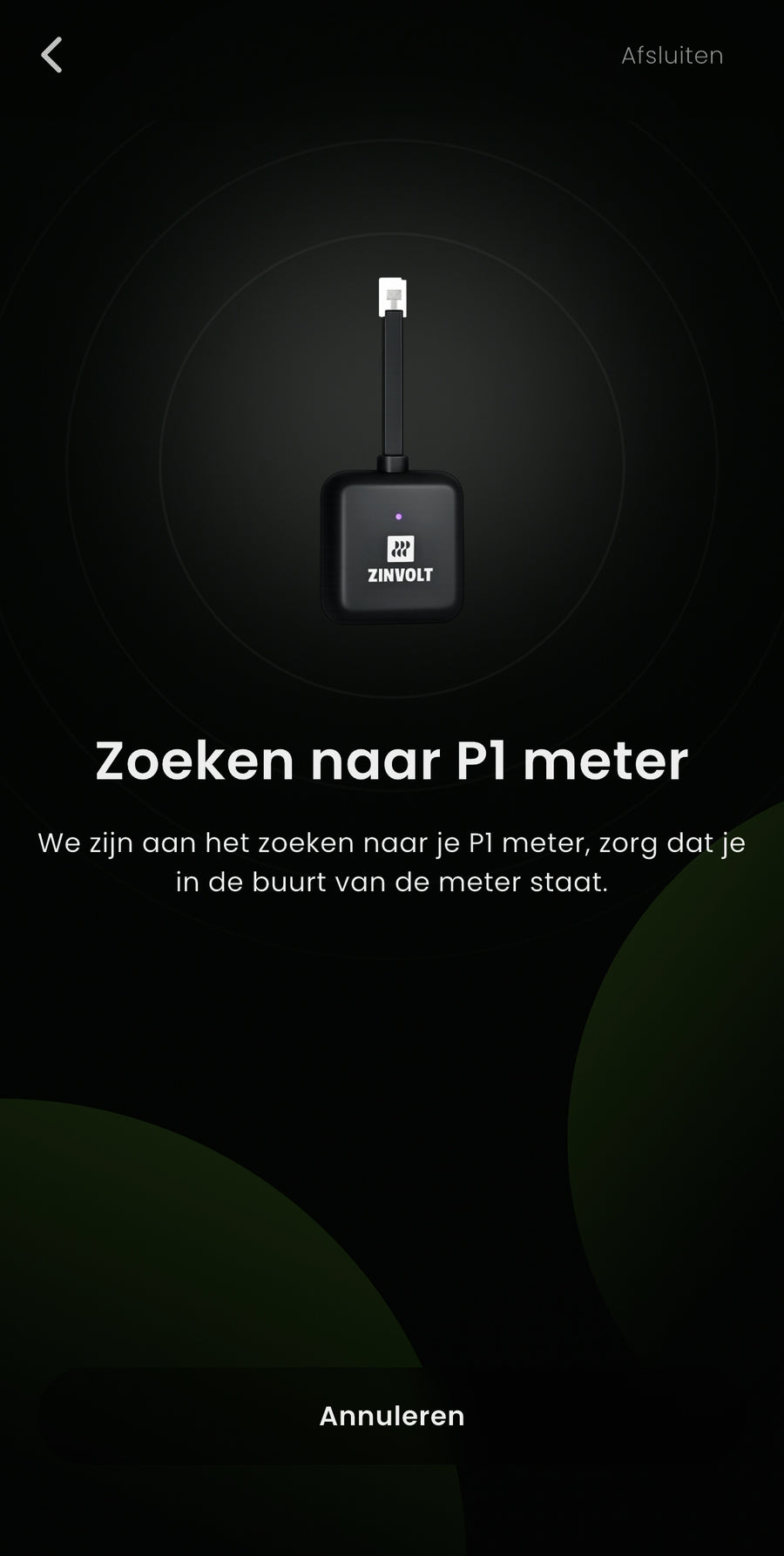
In this step, you will bring the P1 dongle PRO online by connecting it to Wi-Fi. This works in the same way as connecting the battery.
Please note:
It may take a few minutes for the P1 dongle PRO to appear and become fully active in the app. This is normal. Do not close the app immediately; give the dongle some time to come online.
Once the P1 dongle PRO is found in the app, you will be asked to choose a Wi-Fi network and enter its password. Make sure you select the correct network and enter the password correctly.
After connecting to Wi-Fi, the P1 dongle PRO becomes active and can send data to the ZinVolt app.
Continue to step 9
Important for good calibration
Fully charge the home battery once so the system can correctly identify its capacity.
- Temporarily set the home battery to the mode Fast charging
- Allow the home battery to charge fully to 100% once
- This helps the home battery calibrate correctly
After the first full charge cycle, you can change the mode back to your preferred setting at any time.
Want the battery to respond to surplus solar electricity? After fast charging to 100%, set the battery to Zelfgebruik (Self-consumption).
ZinVolt app
Dashboard and completion
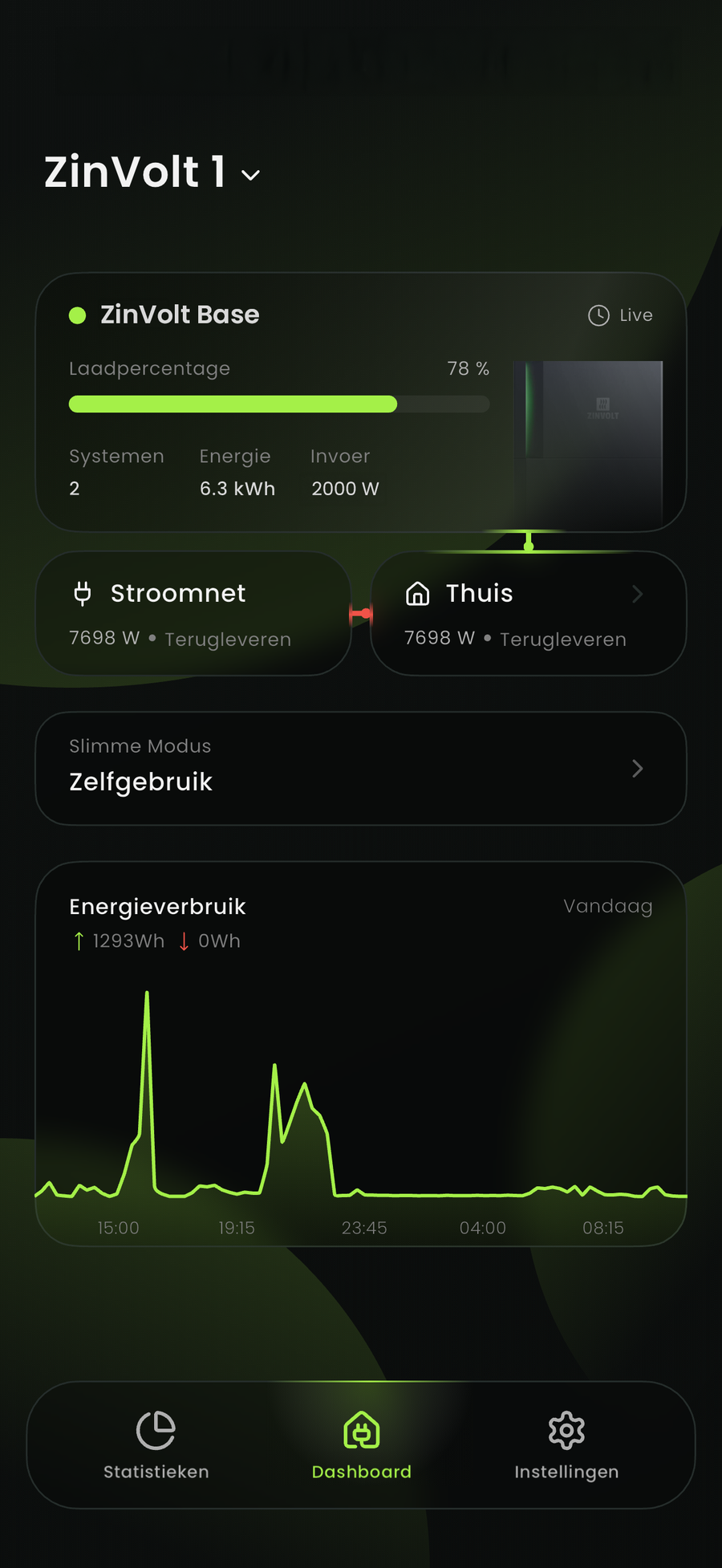
Congratulations!
Your ZinVolt Base is successfully set up and online. The ZinVolt P1 dongle PRO is also working correctly, so your home battery can now be controlled intelligently based on your energy use and solar panels.
You can now see the ZinVolt app dashboard. Here you can:
- View your battery's status
- Track energy use and generation
- Change your battery's mode
- Understand energy flows in your home
Everything is now ready to use.
Still have questions or did something not work? Please contact us:
Go to the contact page
Multiple ZinVolt Base systems

Did a step fail?
Is your ZinVolt Base not being found? Check that Bluetooth is on and stay close to the battery. A restart may help: follow the steps for switching ZinVolt Core and Base off and back on. Then search for the battery again in the app.
Having trouble with Wi-Fi or the P1 connection? Check your current Wi-Fi password and follow the P1 dongle PRO guide. There you can choose the route with or without a home battery. For recurring problems, see the targeted checks under installation questions.
Unsure whether everything is connected correctly, or still having trouble after the checks? Contact ZinVolt and tell us which system you have and which step is not working.
Devices connected to the backup power outlet also lose power while the battery is switched off.
Contact
Contact us
Having trouble with the steps on our website? Ask your question below and we'll help you as soon as possible.
Form
How can we help?
Leave your details and question. The clearer your question, the faster we can help.
We only use your details to reply to your question.


